If your phone is not re-connecting to Tom or the connection drops, make sure you use the right phone settings and any battery saving modes are switched off. Also check that Bluetooth hasn't been disabled on your phone.
Update
Make sure Tom and the TomTom app are up-to-date.
Phone settings
To allow Tom to start automatically, make sure the required permissions and battery settings have no restrictions.
See: Phone settings for Tom by TomTom
Pairing
It's important that you pair with Tom from within the TomTom app. Do not pair from your phone’s settings.
If you used your phone’s settings, unpair Tom there. Then pair it in the TomTom app’s Main Menu > Add Tom device.
Compatibility
Tom requires later versions of Android and iOS than the stand-alone TomTom app:
- Android 12 or higher
- iOS 18 or higher
Light signals for pairing
|
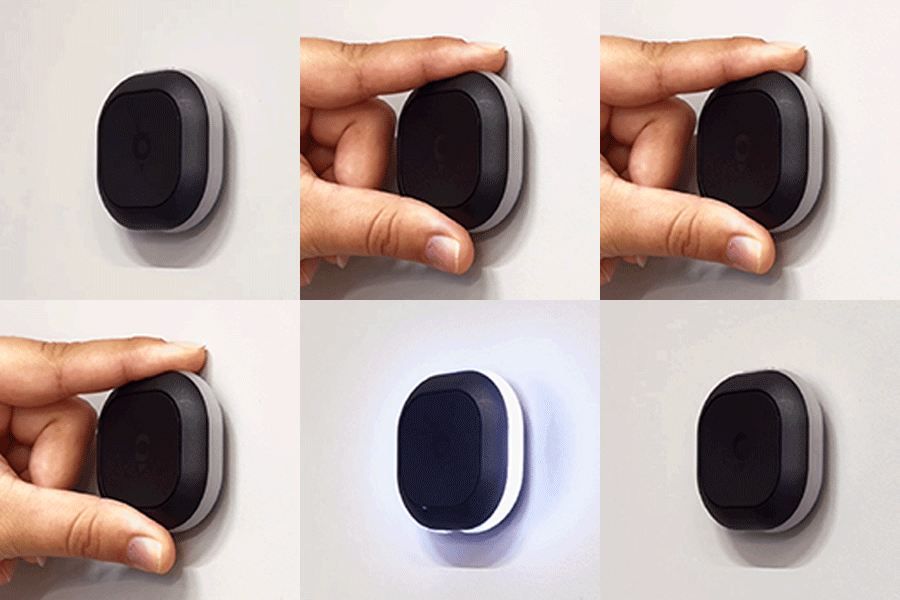
Power on For the first time of use, hold the top button for 3 seconds to power on Tom. A white light appears confirming Tom is powered on. |
 |
|
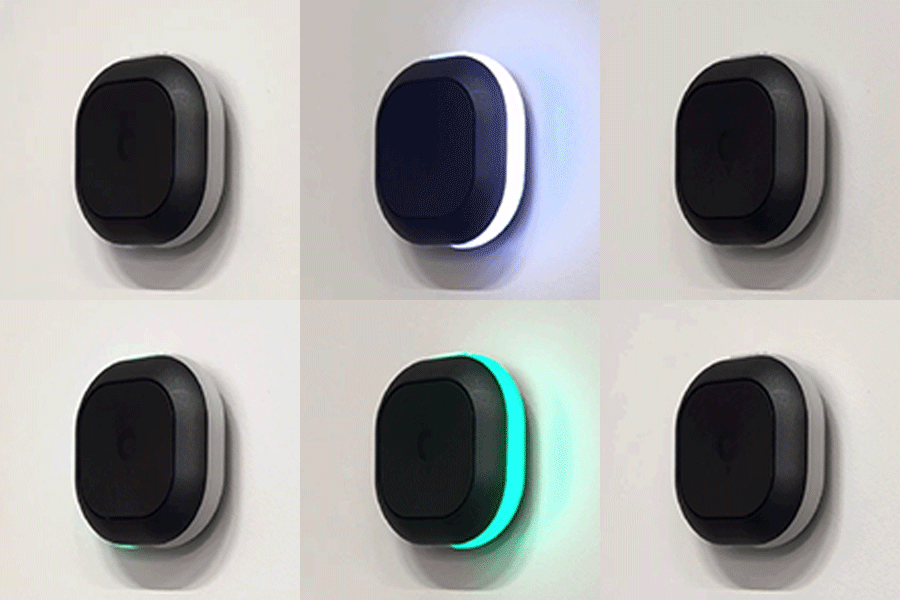
Pairing mode and auto-start When Tom tries to pair to a smartphone, it lights up white. When pairing is successful, the color changes to green. |
 |
|
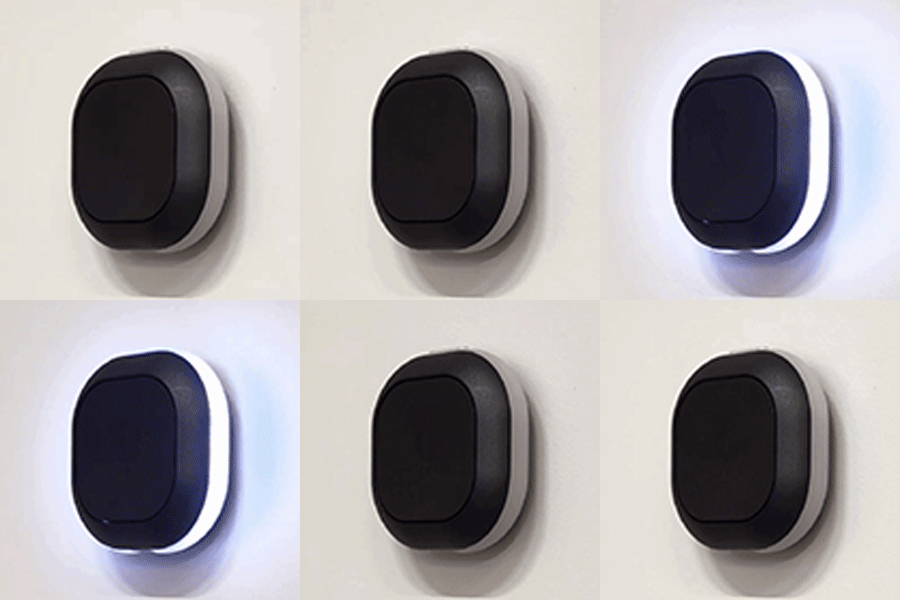
Pairing unsuccessful A pulsating white LED indicates Tom is unable to pair to a smartphone. |
 |
|
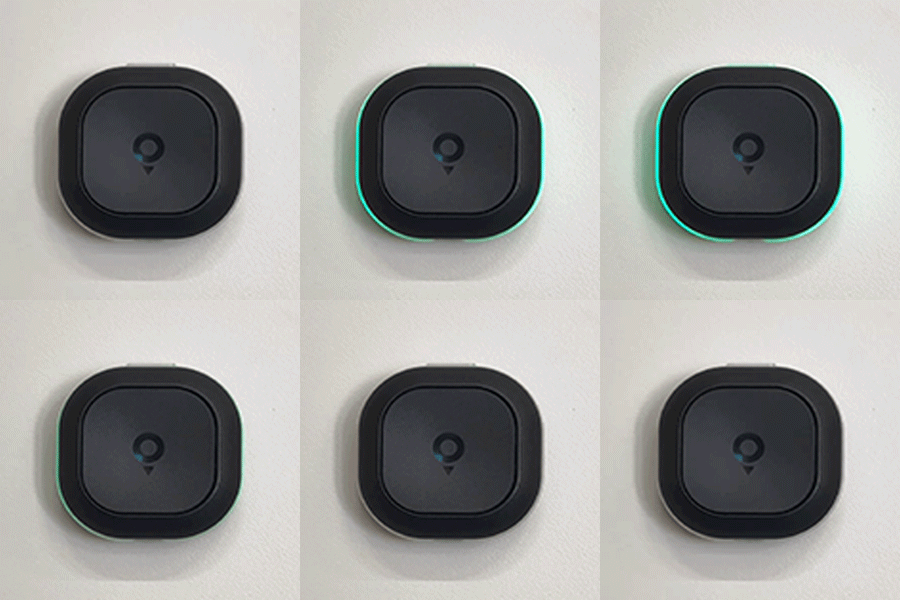
Heartbeat A pulsating green LED is indicating a successful connection between Tom and the smartphone. This heartbeat repeats every 10 seconds |
 |