Let's get you reconnected. Start with these quick checks — most connection issues come down to phone settings: make sure Bluetooth is on and turn off any battery savers for the TomTom app. These can stop Bluetooth from running in the background.
Update Tom and the app
Keeping both up to date fixes known connection issues and improves stability.
Phone settings
Allow Tom to start automatically by granting the required permissions and removing any battery or background restrictions. These settings let the TomTom app run reliably in the background so it can reconnect.
Check phone settings for Tom by TomTom
Pairing
Pair Tom from within the TomTom app — not from your phone's Bluetooth settings. This ensures all permissions are set up correctly.
If you already paired Tom in your phone's settings, unpair it there first. Then open the TomTom app and go to: Main Menu > Add Tom device.
Compatibility
Tom requires newer OS versions than the stand-alone TomTom app. If your phone is on an older OS, update it to reconnect reliably.
- Android 12 or higher
- iOS 18 or higher
Light signals for pairing
|
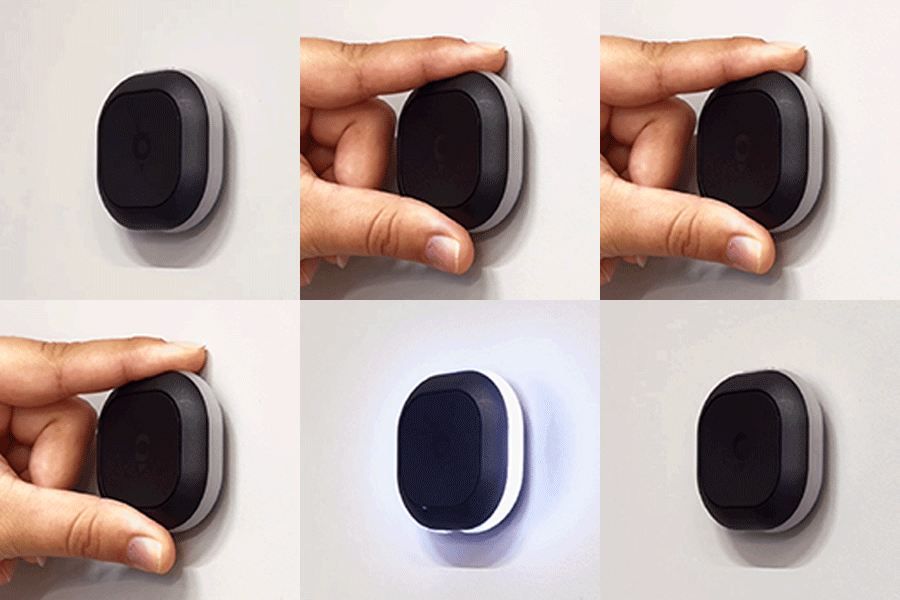
Power on The first time you use Tom, hold the small top button for three seconds to power on Tom. A white light appears confirming Tom is powered on. |
 |
|
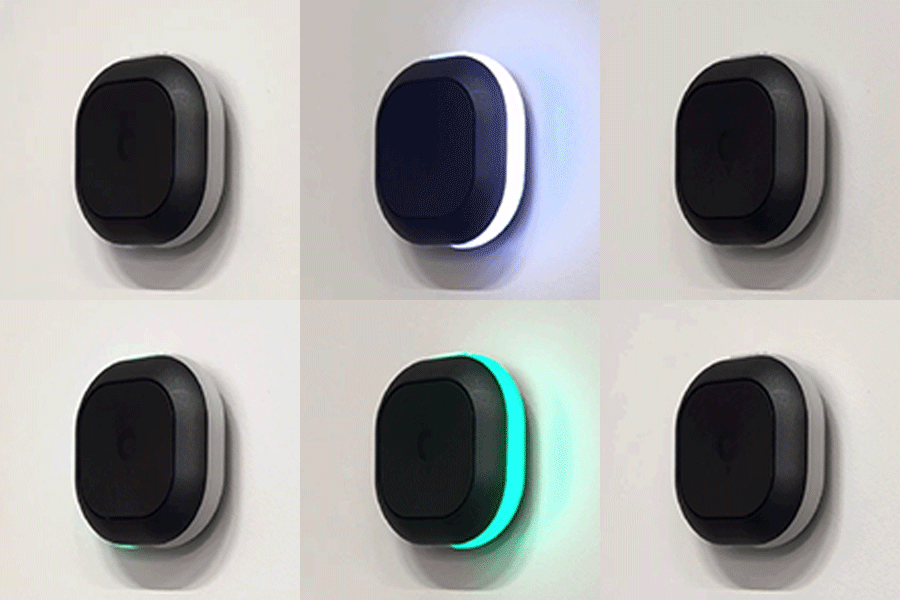
Pairing mode and auto-start When Tom tries to pair with a smartphone, it lights up white. When Tom pairs successfully, the light turns green. |
 |
|
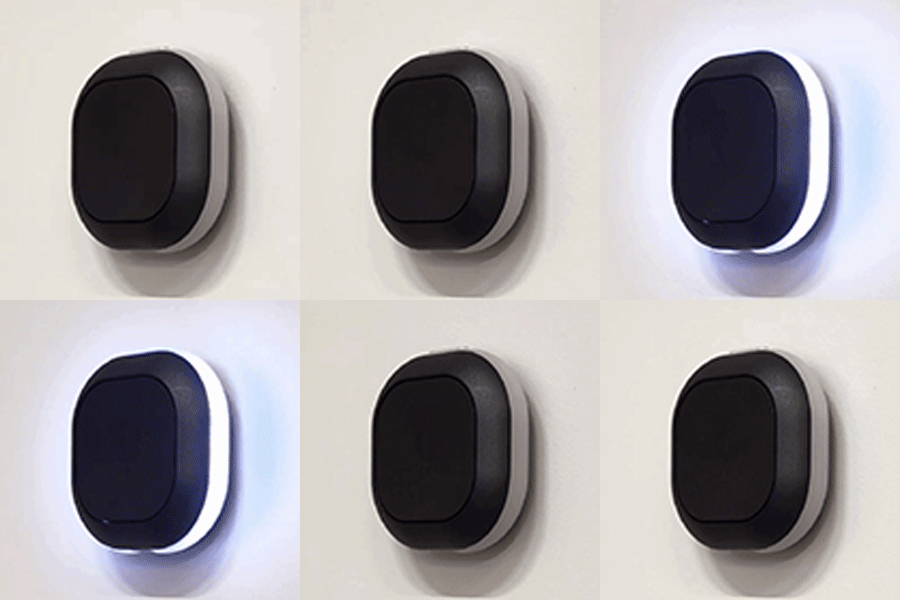
Pairing unsuccessful A pulsating white LED indicates Tom is unable to pair to a smartphone. |
 |
|
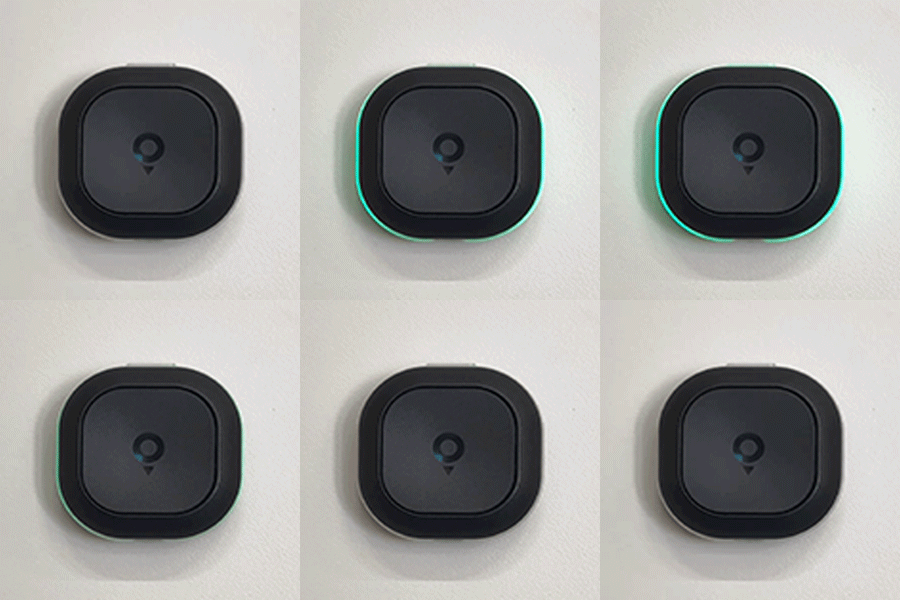
Heartbeat A pulsing green LED indicates a successful connection between Tom and the smartphone. This heartbeat repeats every 10 seconds. |
 |