If you cannot hear turn-by-turn instructions in the TomTom GO Expert app for iPhone there are a few things you can try.
Volume off sync
If dragging the volume slider in the app has no affect, try using the physical volume-up button as follows:
- In the GO Expert app, tap Menu > Settings > Voices.
- Tap Choose a voice at the top of the screen.
- Press the physical volume-up button on the side of your iPhone.
- While pressing the button, tap a voice in the app to play a demo of that voice.
A computer voice demo plays longest so that's the best choice for this.
This should increase the volume of voice instructions and alert sounds.
More options
- At the bottom left of the main menu, tap the AirPlay icon to see which of the available audio devices is selected.

- At the bottom right of the main menu, which of the three alert options is selected?
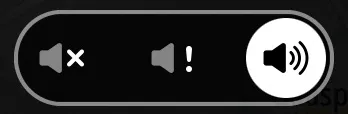
- Alerts and guidance off
- Alerts only
- Alerts and guidance on
- Close, re-open and re-plan the route.
- In Apple CarPlay, check what sound icon is shown in the top right corner. A cross indicates disabled sounds. To test voice prompts in CarPlay go to menu > volume for a voice demo. Try changing the volume.
- Important : Only try this as the very last resort!
If voice instructions stop after updating the app, uninstall and reinstall the app.
Make sure you have Plan.TomTom.com/ TomTom account enabled in TomTom Services . This ensures you have a backup of your places and routes.