To update your device using the MyDrive Connect application, follow the below steps:
If your device connects to Wi-Fi®, click here: Updating your device using Wi-Fi .
- Use a TomTom USB cable to connect your TomTom device to your computer.
Note: MyDrive Connect starts automatically when the device is connected. - If asked, log in with your TomTom account and wait for your device to turn on.
Once connected, MyDrive Connect looks for updates and syncronises any changes from your device. - Click on View Updates to check for any available updates.
Note: If there is a software update available, you must install it first. It's already selected at the top of the list; just click Update Selected to install it. - To download and install updates select them from the list, then click Update Selected.
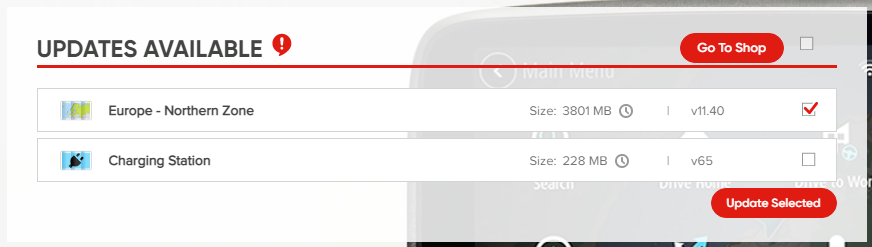
The updates first download to your computer, then are transferred and installed on your navigation device.
Note: Do not disconnect your navigation device from the computer until both the device and MyDrive Connect indicate that the update is completed.
Related articles:
Watch the video
This video shows how to update or change the installed maps for your device, and how to install a brand new map. The steps shown in this video apply to all devices that update with MyDrive Connect. For more information on freeing up space on your device, see: Removing unused content.