Requirements
Bluetooth pairing Tom with your phone is handled by the free TomTom app. Make sure the app is installed on your device and up-to-date.
- TomTom app for Android (Android 12 or higher)
- TomTom app for iOS (iOS 18 or higher)
Note: It's important that you pair with Tom from within the TomTom app, not from your phone's settings.
Bluetooth pairing requires the following permissions:
- Location – always
- Nearby devices (Android)
- Notifications
- Run in background
See: Phone permissions for Tom by TomTom
Pairing Tom with your phone
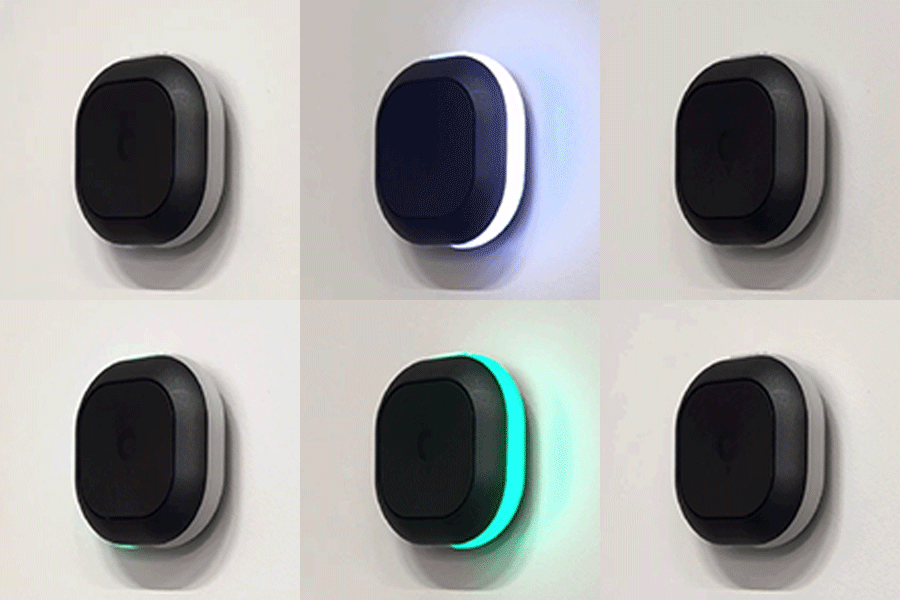
- A white light signals that Tom is ready to be paired.
- From the TomTom app menu, tap Add Tom device.
- Tap Pair device.
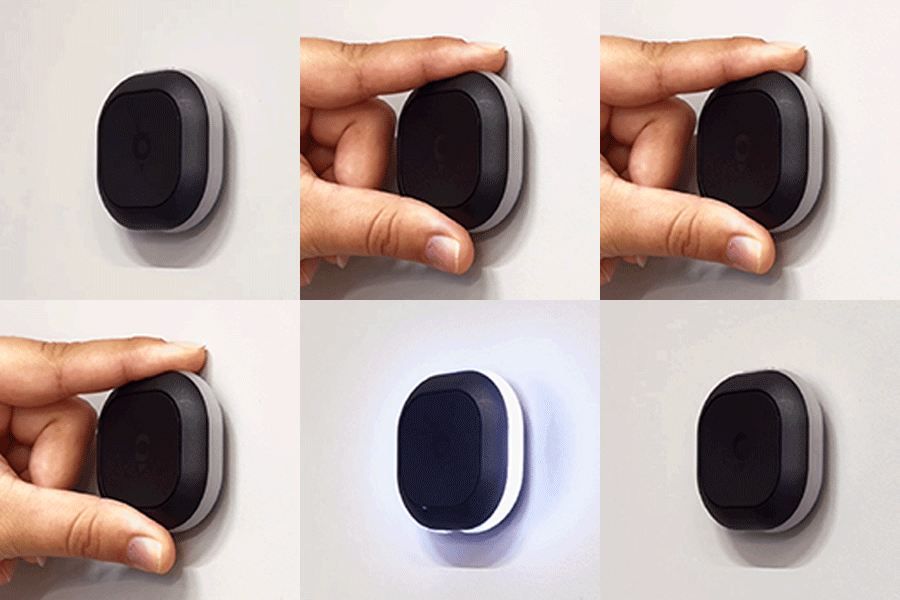
- To switch Tom on, press and hold the small transparent top button for three seconds.
- Tap Allow so the TomTom app can access your Tom.
- A green light signals that Tom is connected to your phone.
- Tap Get started.
Note: Tom goes into sleep mode after 60 seconds. To wake up Tom shortly press the top button.
If pairing fails
- From the TomTom app menu, tap Tom.
- Scroll down, then tap Remove device.
- Follow the above steps to pair Tom again with your phone.
Light signals for pairing
|
Power on For the first time of use, hold the top button for 3 seconds to power on Tom. A white light appears confirming Tom is powered on. |
 |
|
Pairing mode and auto-start When Tom tries to pair to a smartphone, it lights up white. When pairing is successful, the color changes to green. |
 |
|
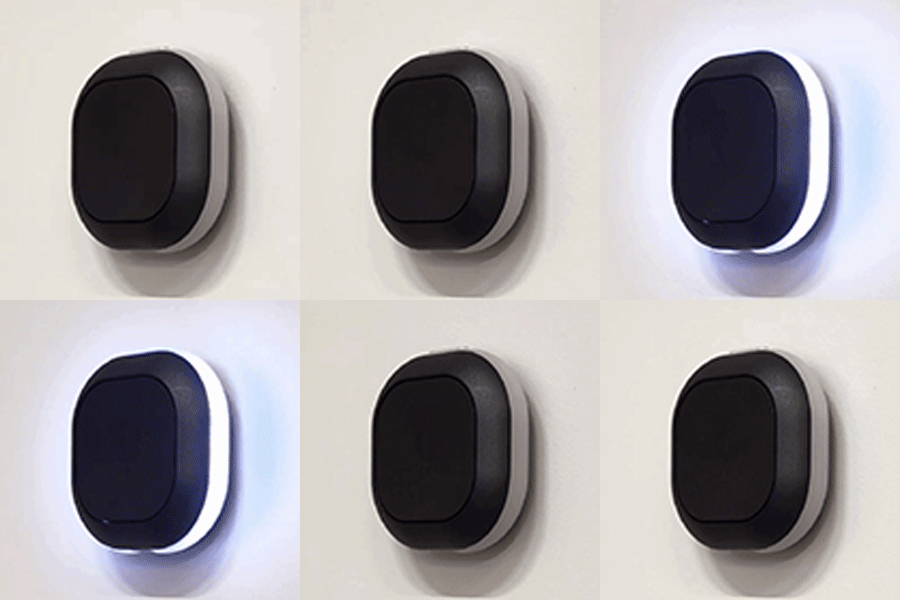
Pairing unsuccessful A pulsating white LED indicates Tom is unable to pair to a smartphone. |
 |
|
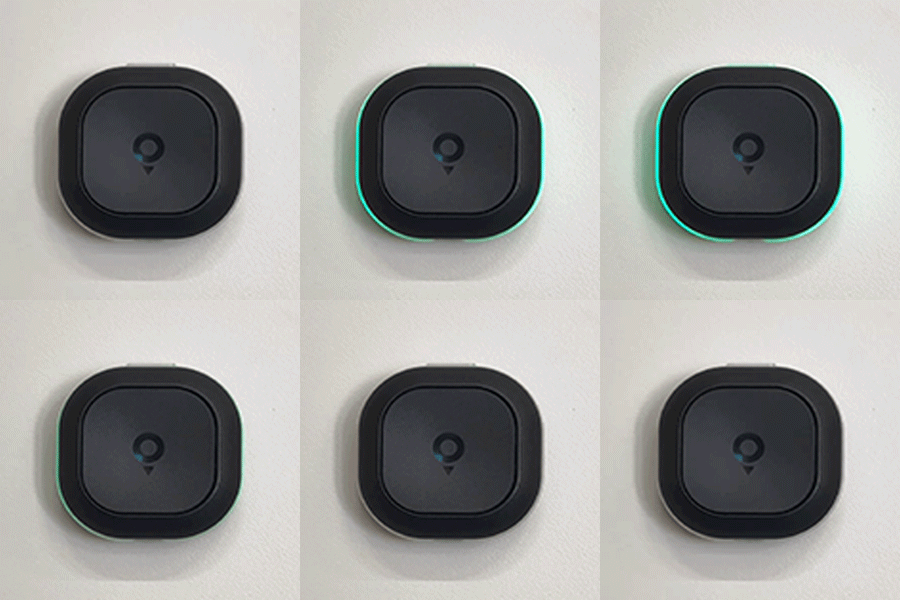
Heartbeat A pulsating green LED is indicating a successful connection between Tom and the smartphone. This heartbeat repeats every 10 seconds |
 |