Get the most from Tom, our road alert assistant. Watch the video or follow the steps below to get started.
Get started with Tom
1
Get the TomTom app
Download the TomTom app from Google Play or the Apple App Store. Scan the QR code with your phone or tap the QR code.
- Android 12 or higher
- iOS 18 or higher
2
Pair your Tom with the TomTom app
Note: Make sure you start pairing in the TomTom app, not in your phone's settings.
- In the TomTom app, open the menu and tap Add Tom device.
- Tap Pair device.
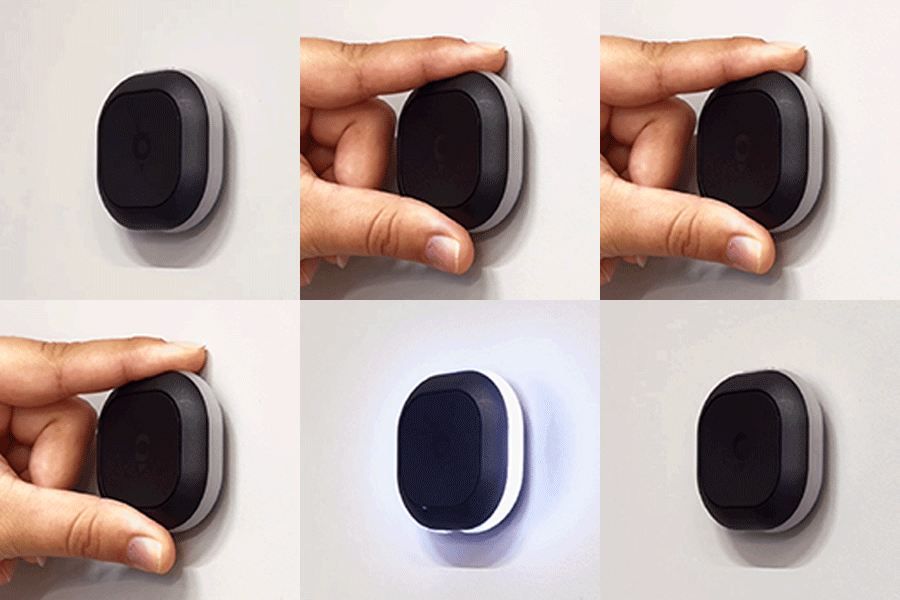
- Press and hold the small top button until the lights turn on.
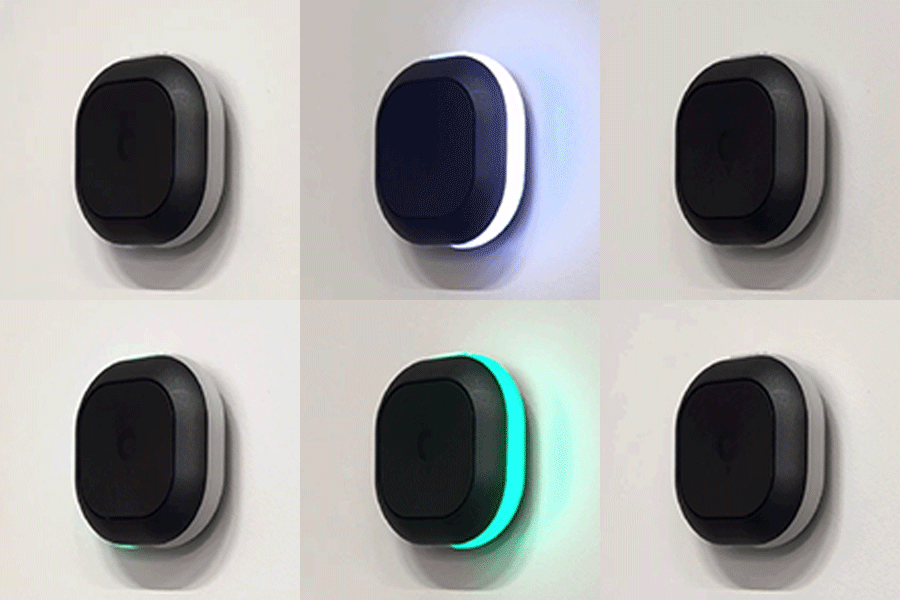
- Tap Set Up to let allow the app to access Tom. You'll see a green light when Tom is connected.
- Tap Done.
Learn about app permissions for pairing.
| Pairing | |
|---|---|
|
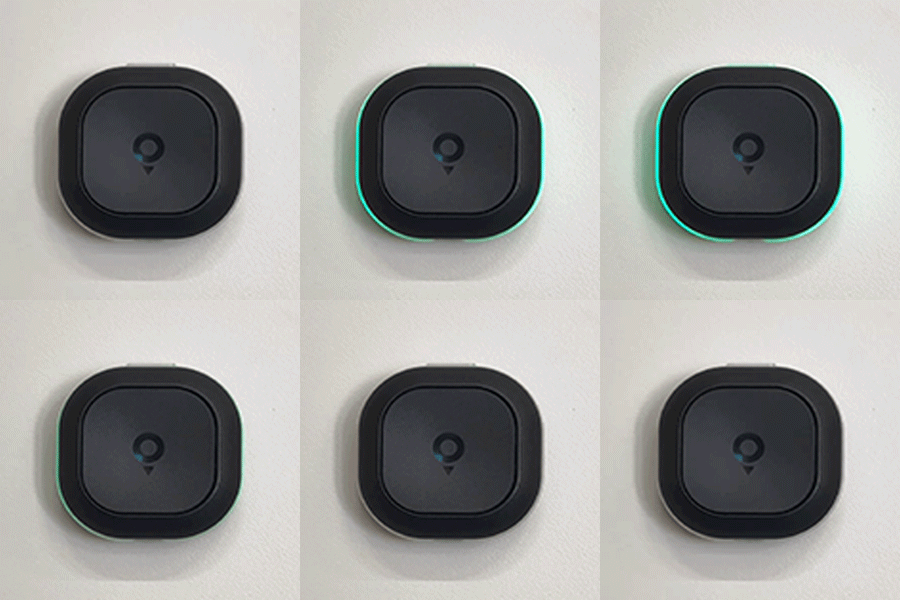
Power on The first time you use Tom, hold the small top button for three seconds to power on Tom. A white light appears confirming Tom is powered on. |
 |
|
Pairing mode and auto-start When Tom tries to pair with a smartphone, it lights up white. When Tom pairs successfully, the light turns green. |
 |
|
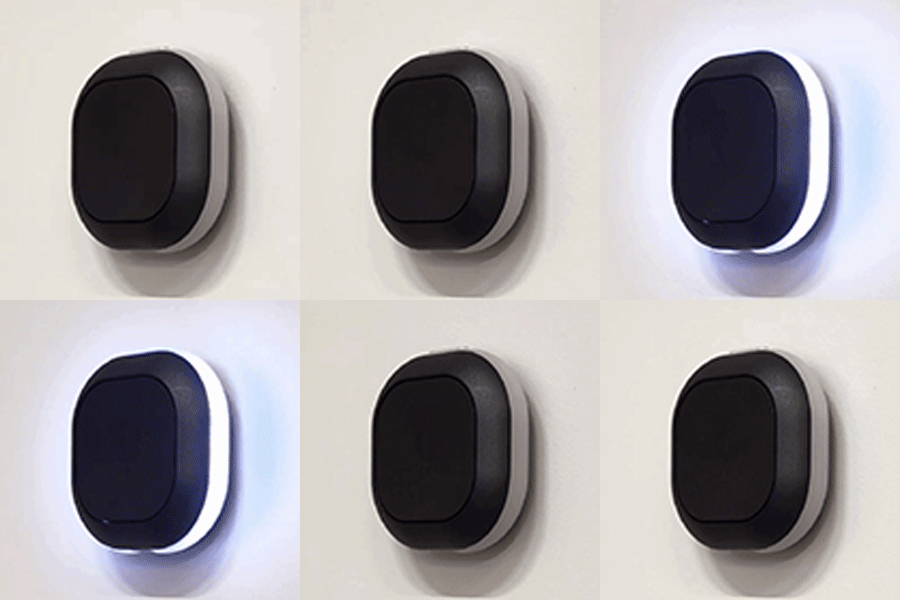
Pairing unsuccessful A pulsating white LED indicates Tom is unable to pair to a smartphone. |
 |
|
Heartbeat A pulsing green LED indicates a successful connection between Tom and the smartphone. This heartbeat repeats every 10 seconds. |
 |
3
Charge your device
| Battery | |
|---|---|
|
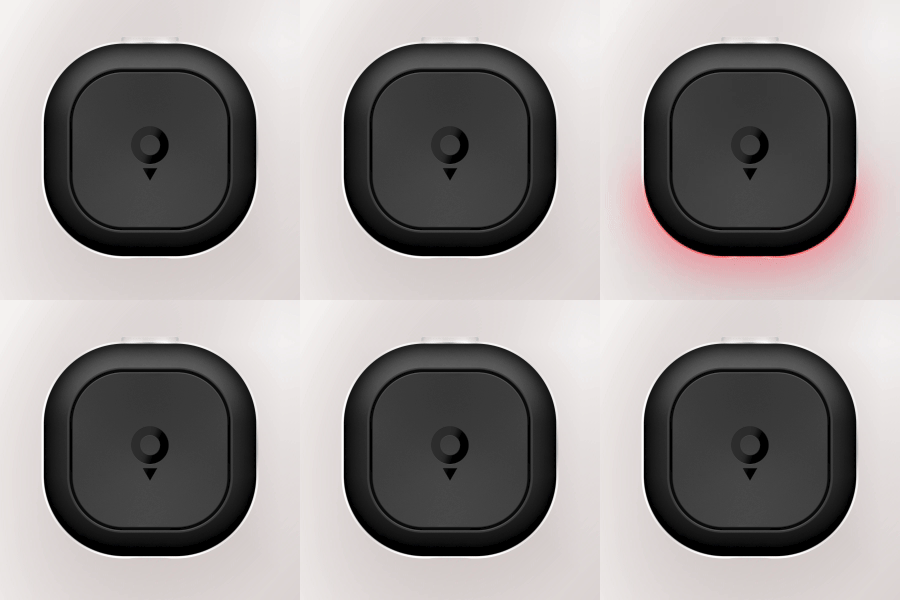
Low battery Red lights at the bottom of Tom appear when the battery is low. Charge Tom. |
 |
|
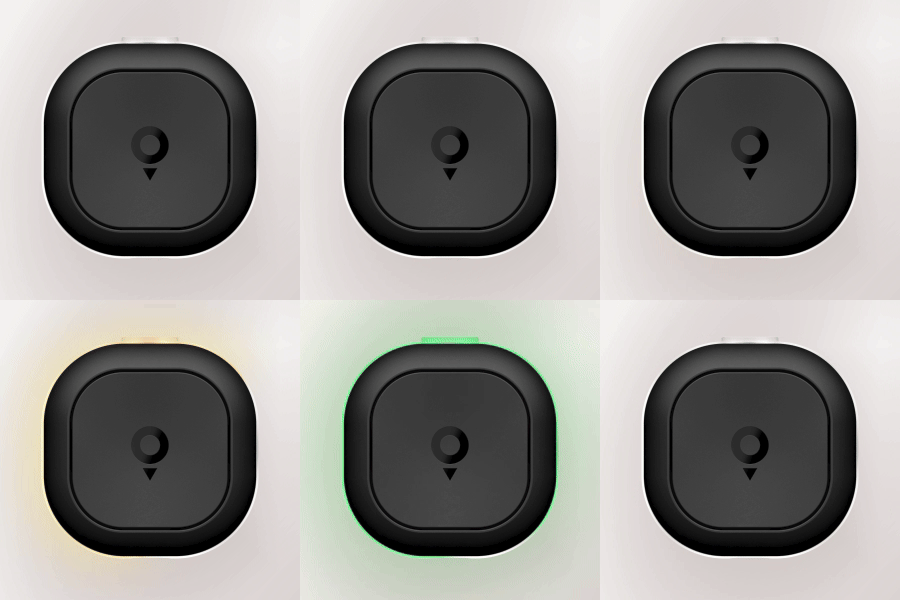
Charging when inactive When Tom is charging, blinking lights appear, starting with red lights at the left bottom, changing to orange and when the battery is almost full, the lights change to green. |
 |
4
Mount Tom in your car
Adhesive mount
You can mount Tom on your dashboard. For best results:
- For the best view of Tom's light alerts, keep it out of direct sunlight.
- Pick a flat spot where Tom won't block your view or cover an airbag or screen.
- Clean and dry the area so the adhesive bonds well.
- Peel the backing and press the mount down firmly.
Note: The 3M adhesive is single-use — once applied, you can't reposition or reuse it. Avoid placing the mount in direct sunlight.
Air vent mount (included in the Tom Premium Pack)
The air vent mount works with most vents that have horizontal or vertical slats.
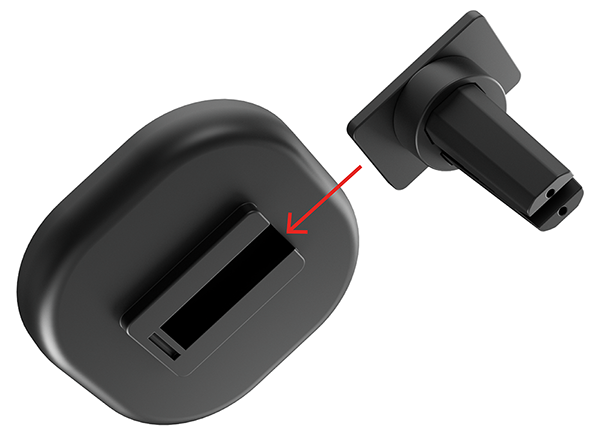
- The mount has two pieces. Slide them together until they click (see the image below).
- Clip the mount onto your air vent.
- The built-in magnets secure Tom to the mount — no slipping, no wobbling.
5
Ready to hit the road?
- See a speed camera? Tap the large centre button once.
- See a road hazard? Hold the large centre button for a second and a half.
- Get a false camera alert? Tap the top button to dismiss it.
Learn more about colours and alerts: TomTom.com/tom-alerts
6
Device settings
Sounds & lights
- Set the volume of the beeps from Tom.
- Adjust the brightness of the LEDs.
- Enable or disable the heartbeat that shows Tom is connected.
Alert preferences
Choose which alerts you want to receive while driving:
- Cameras
- Traffic
- Road hazards
- Speeding