Congratulations on your new TomTom device! This article takes you through the steps to set up your new device and get you moving.
This explains how to check for software updates, map updates, and connect to TomTom services on your device.
1
Install MyDrive Connect
Start downloading MyDrive Connect for your navigation device and install it onto your computer.
Click here for detailed instructions: Installing MyDrive Connect
- Make sure your navigation device is not connected to your computer before installing MyDrive Connect.
- Click run, open or save the file.
- Follow the wizard to install MyDrive Connect.
Note : If the installation of MyDrive Connect does not start automatically, check the downloads folder on your computer and double-click the file to start the installation wizard.
2
Log in to MyDrive Connect
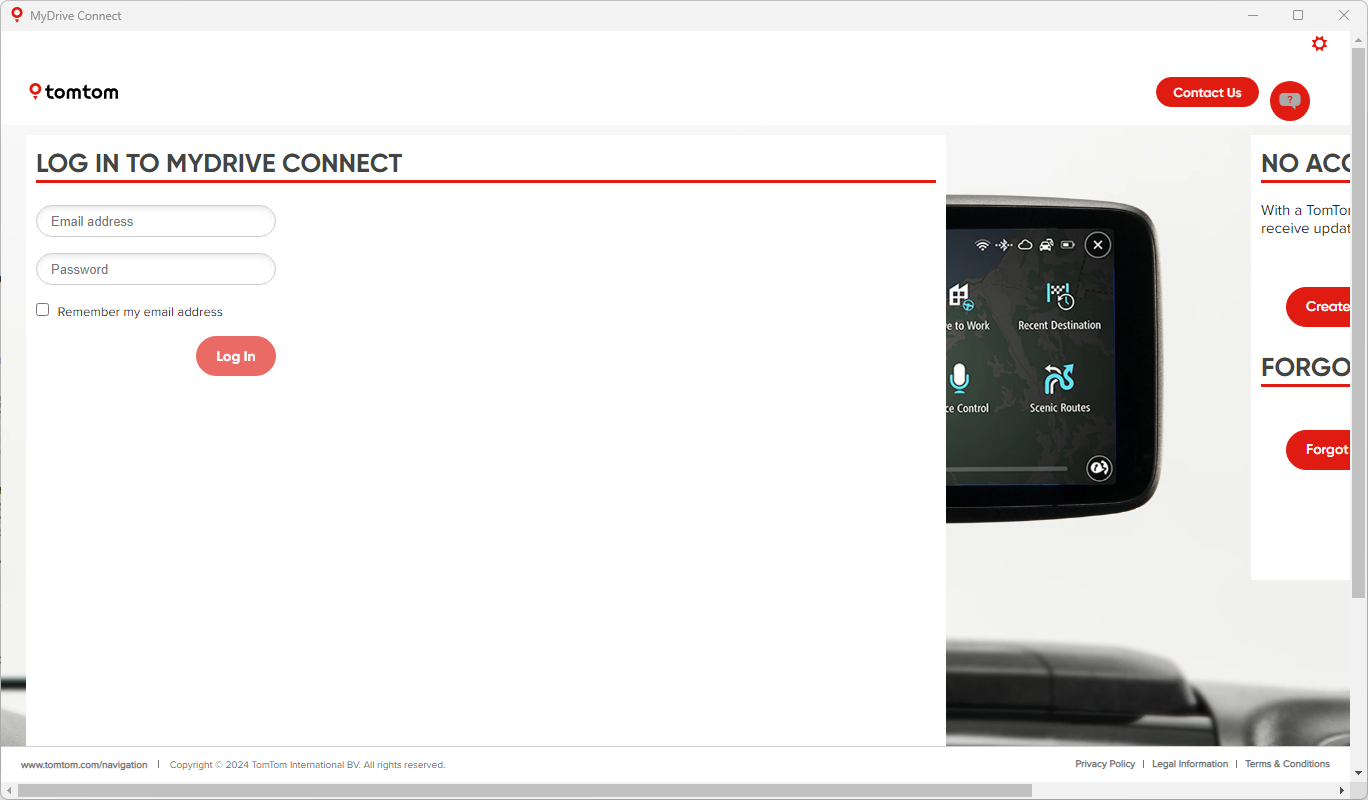 Log in to MyDrive Connect or create an account
After the installation, MyDrive Connect opens automatically and you can either log in or create a new account.
3
Connect your device
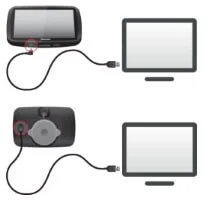
Connect your navigation device to your PC
To connect your navigation device correctly, plug your USB cable directly into a USB port on the computer. Use only the USB cable supplied with the device, other USB cables may not work.
4
Set up and activate services
Switch on your device and follow the set-up assistant which will help you activate your services.
User Manual
- VIA 62 User Manual
- Start 62 User Manual
- Start 42 User Manual
- GO 600 / GO 610 User Manual
- GO LIVE 1005 User Manual
- GO LIVE 1005 World User Manual
- GO 1005 User Manual
- VIA LIVE User Manual
- Start 20 / 25 User Manual
- TomTom Connect LIVE User Manual
- VIA 52 User Manual
- Via 130 / 135 User Manual
- START 60 User Manual
- PRO 5150 TRUCK LIVE User Manual
- Blue&Me TomTom 2 (LIVE) User Manual
- Blue&Me TomTom 2 User Manual