Sometimes map updates in MyDrive Connect can look stuck at a certain percentage or show on-screen messages like Getting ready, Preparing, or Checking because of the way the application processes updates.
MyDrive Connect first downloads the map update and then installs it on the device. While downloading a large update such as a map, the device suspends the connection with the computer. And when the installation begins, the device does not reconnect automatically, preventing the update from continuing.
To resume the update, follow these steps below:
- Quit the MyDrive Connect application from the notification area on your computer.
- Disconnect the device from the computer.
- Reopen MyDrive Connect.
- Reconnect the device to the computer and perform a soft reset while it remains connected.
This process should resume the map installation on your device.
If the update remains stuck, clear the cache in MyDrive Connect:
- Keep your device connected to the computer.
- Click the Settings icon in MyDrive Connect.
- Select the Downloads tab and click Empty download folder.
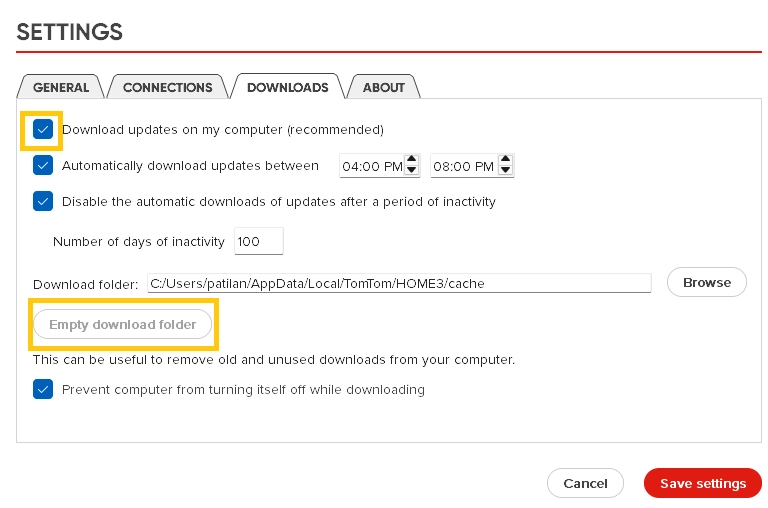
- Deselect the option Download updates on my computer and save settings.
- Perform a soft reset on the device again and restart the update.