Click here to see compatible devices:
GO 520 Wi-Fi, GO 620 Wi-Fi, Rider 500/550, Rider 550, GO 5200 Wi-Fi, GO 6200 Wi-Fi, GO 52, GO PROFESSIONAL, GO PROFESSIONAL 520, GO PROFESSIONAL 620, GO PROFESSIONAL 6200, GO PROFESSIONAL 6250, GO PROFESSIONAL 2nd Generation, VIA 53, GO Basic, GO Classic, GO Classic Lite, GO Classic 2nd Generation, GO Essential, GO Premium, GO Premium X, GO Comfort, GO Supreme, Go Navigator, GO Navigator 2nd Generation, GO Superior, GO Discover, GO Advanced, GO Exclusive, GO Expert, GO Expert Plus, GO Expert Plus PP, GO Camper, GO Camper Tour, GO Camper Tour 2nd Generation, GO Camper Max, GO Camper Max 2nd Generation.
Your device can be updated using Wi-Fi® without the need to connect to a computer. Before you begin, make sure that you have access to a personal home network.
Whilst updating over Wi-Fi®, we recommend that your device should remain connected to a power supply, using the USB cable supplied with your device.
Connecting to a Wi-Fi® network
To connect to a Wi-Fi® network, switch on your device and do the following:
- Tap the main menu and go to Settings.
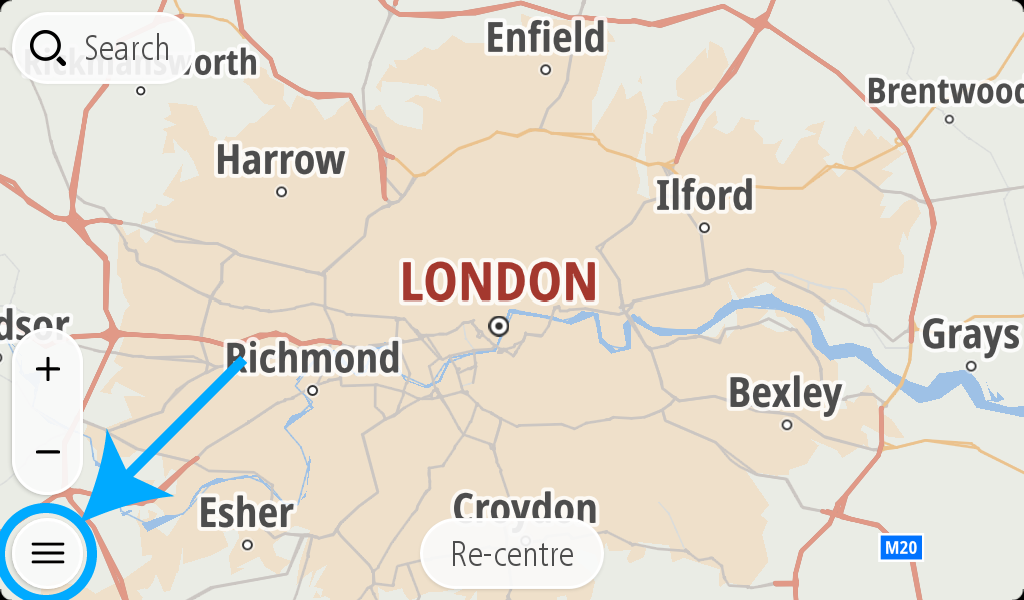
- Tap Wi-Fi® .
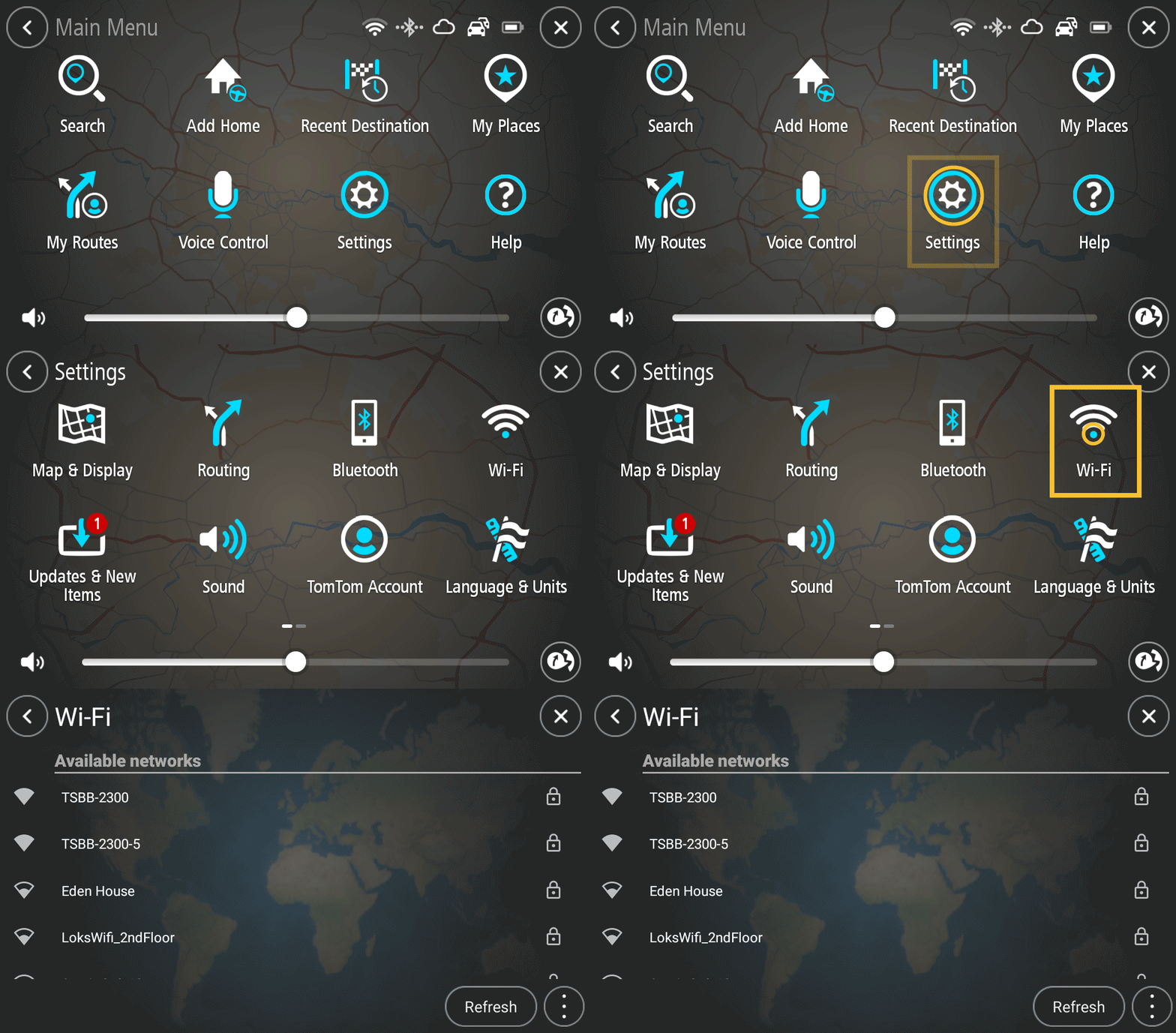
- The available Wi-Fi® networks are listed.
Select the network you want to use and enter the password and tap Connect.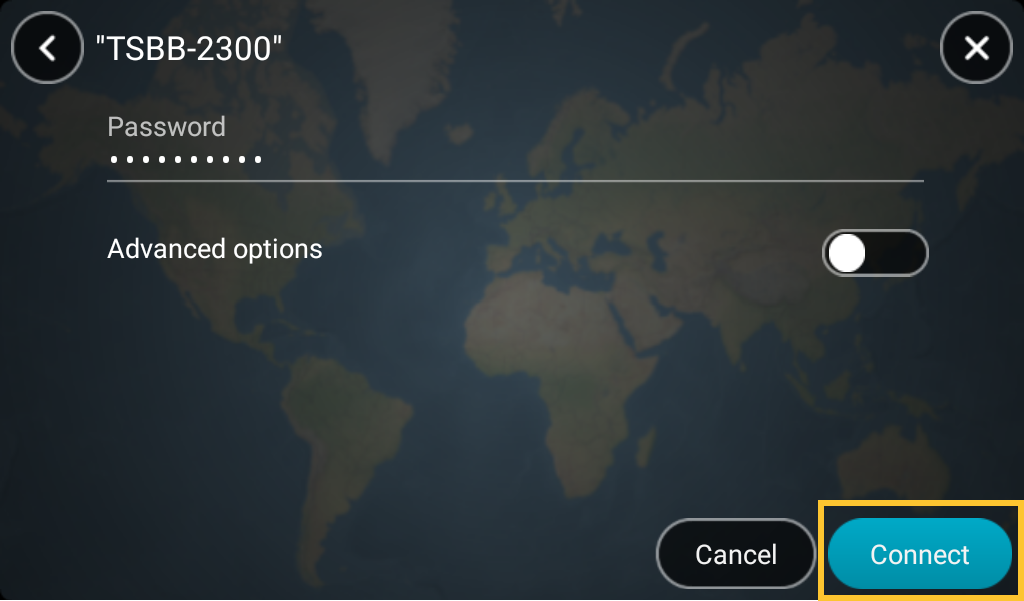
It may take a few moments for your device to connect to Wi-Fi®. If it takes too long, please check the credentials you are using to connect to the network such as the username and password.
Once your device has successfully connected to the Wi-Fi® network, you see the status Connected.
Log in or create a TomTom account
Once you’ve connected to Wi-Fi®, you need to log in using a TomTom account.
If you already have a TomTom account, you can log in with those existing details. If you don’t have a TomTom account, you can create one https://www.tomtom.com/account/create.html.
- To log in, tap the main menu and go the Settings.
- Tap TomTom Account.
Enter your email address and password to log in.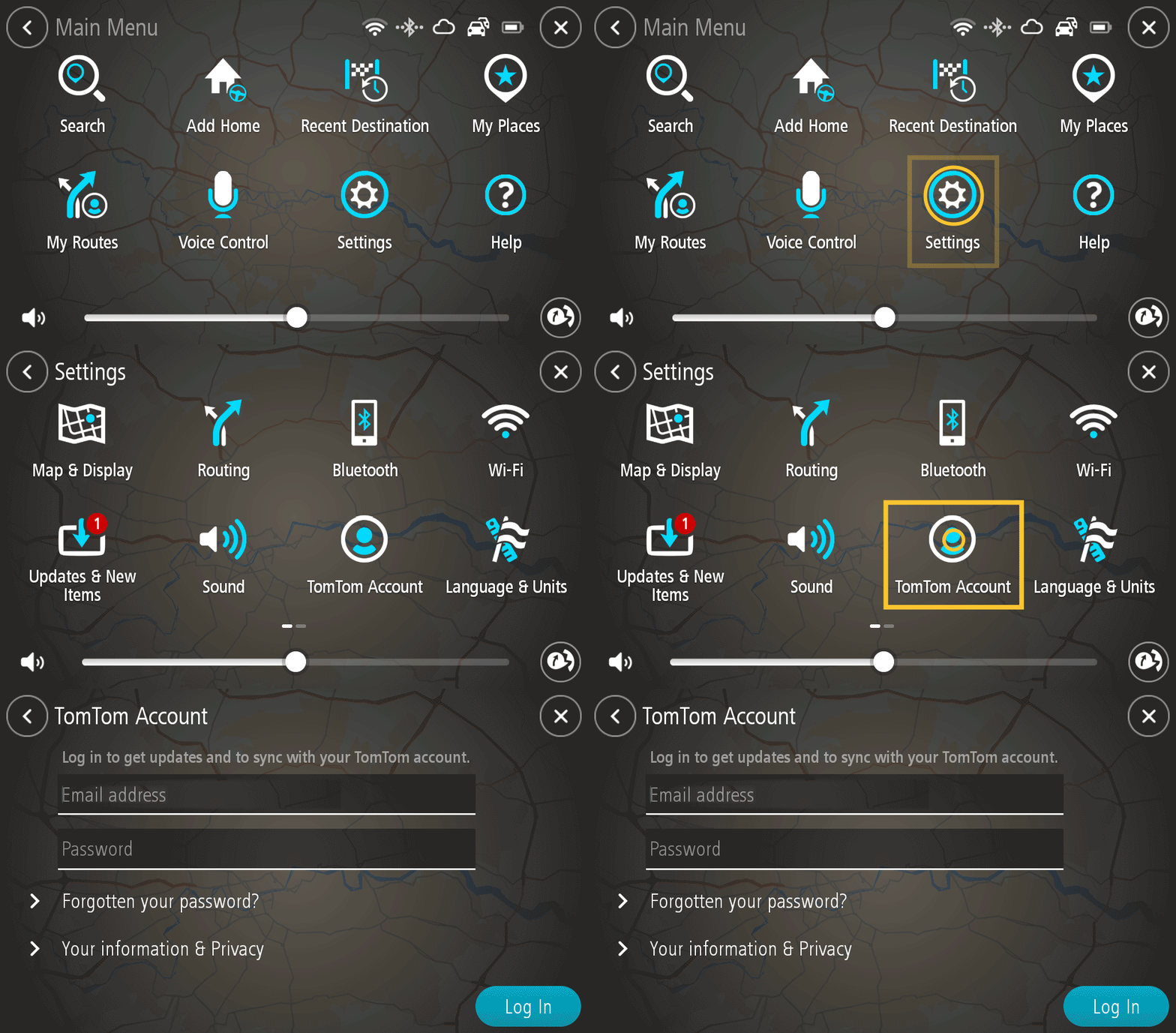
Note: If you are getting an error while logging in, perform a factory reset on your device. See: Error: Oops, there's a problem with connecting to TomTom Services.
Download updates
Once you’ve logged in with a TomTom account, you’re ready to check for updates! Remember to connect your device to a power supply whilst downloading over Wi-Fi® so that it has enough power to continue the update.
To update over Wi-Fi®, do the following:
- Tap the main menu and go to Settings.
- Tap Updates and New Items.
Any new updates are offered to you here.
These updates can include software updates, map updates, speed camera updates, etc.
If you don’t want to install an offered item, use the toggle slider to unselect it.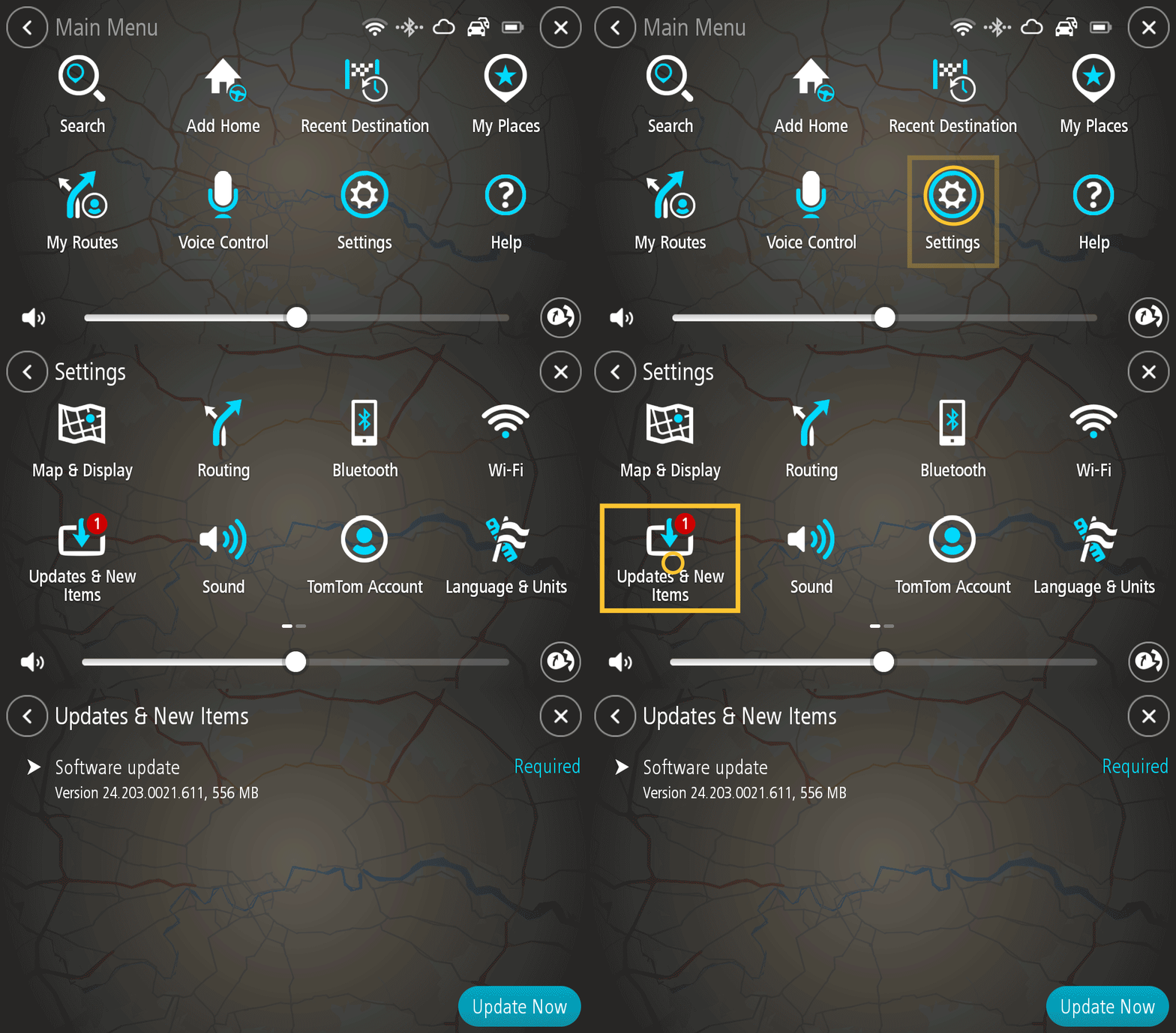
- Tap Update now to install any of the items you’ve selected.