When you buy or update a map, you can choose to install a map zone using MyDrive Connect. You can get this option when a complete map cannot fit on your navigation device. For more information about map zones, see Available map zones (MyDrive Connect)
To install a map zone follow the steps below:
- Connect your navigation device to your computer and open MyDrive Connect. If MyDrive Connect doesn't open automatically, click the MyDrive Connect icon (
 ) from the notification area.
 - Log in with your TomTom account.
- Click MY CONTENT at the top-left corner.

-
Under MY MAPS, click Update or Install on the map you want to update.
Note: If the map is not installed on your device, you may get an option to install it.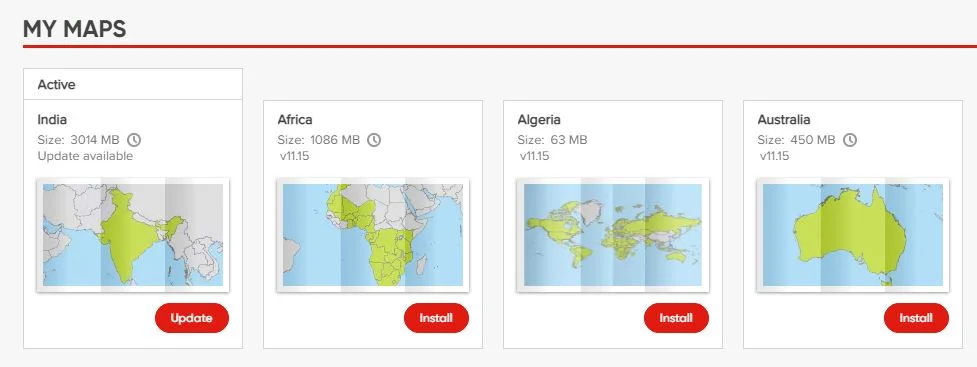
- If your device does not have enough space, you can get an option to free up space, install a smaller map (map zone) or use a memory card (if available).
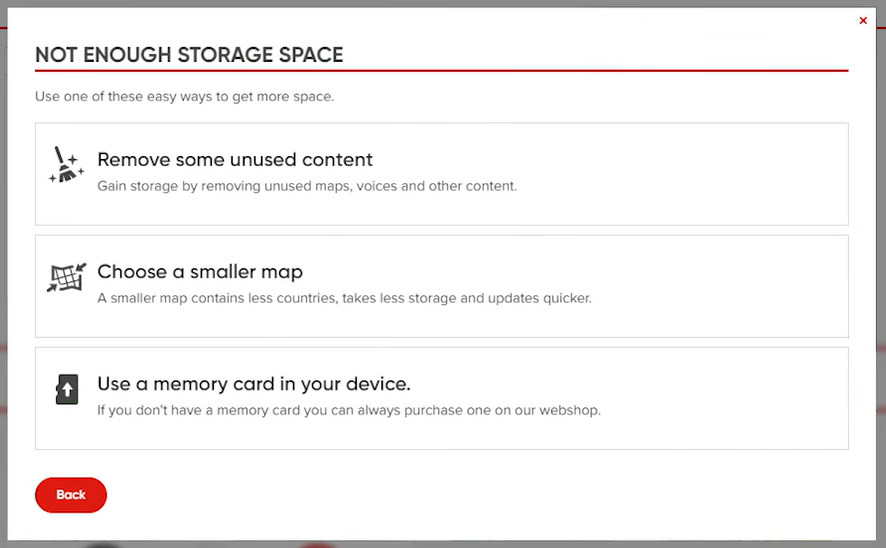
- Click Choose a smaller map to see available map zones.
If your device doesn't have enough space to install a map zone, click Remove some unused content. - Choose the map zone you want to install from the appeared list.
- You are now asked to confirm your map selection. Click Install to confirm.
Watch the video
This video shows how to update or change the installed maps for your device, and how to install a brand new map. The steps shown in this video apply to all devices that update with MyDrive Connect. For more information on freeing up space on your device, click this link .