You can report, confirm or dismiss warnings with Tom by TomTom when it is connected to the TomTom app on your phone.
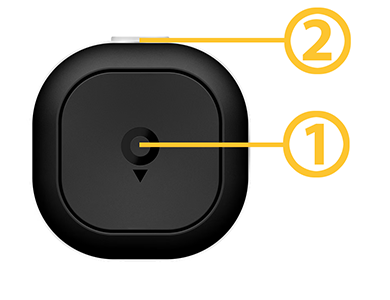
Tom has two buttons:
- A large centre button with the TomTom logo
- A small, transparent top button that can light up in different colours
Report a missing speed camera
Press the large centre button to report a missing speed camera. The light ring glows blue and Tom plays a confirmation sound.
Confirm an existing speed camera
If you get a speed camera alert and it's still there, press the large centre button. The light ring glows blue and you'll hear a confirmation sound.
Report an obstacle
To report an obstacle, press and hold the large centre button until you hear the confirmation sound. The light ring glows yellow.
Confirm an existing obstacle
If you receive an alert for an obstacle on the road and you want to confirm the obstacle is still there, short press the large centre button once. Tom confirms your action by filling in the light ring with a yellow colour and emitting a confirmation sound.
Dismiss a false warning
If you get a false alert for a speed camera or obstacle that's no longer there, press the small top button. Tom clears the light ring and plays a confirmation sound.