Depending on your subscription you can use the GO Expert app for navigation in a truck or car. Subscriptions will auto-renew until cancelled.
1
First time use
When you start the TomTom GO Expert app for the first time, you see the following screens:
- Allow Location - You are asked if the app can use your current location. You must agree to this so that the app can find your location on the map.
- Tour - These screens show you the main features of the app.
- Allow to track your activity - You are asked if you want to send your information to TomTom. If you choose not to send your information, you can still plan routes, but you cannot use TomTom services. Select Yes to send your information.
- Allow TomTom GO to send you notifications
-
Download a Map - You are offered one or more maps that cover the area where you are currently located.
The GO Expert app splits larger countries into several smaller maps. If you get the error No results found make sure all maps are installed for your search:
Android: Main Menu > Settings > Map & Display > Downloaded Maps > Add
iOS: Main Menu > Maps > Add
Important: A map is a large file. We advise you to download a map using a Wi-Fi® connection.
2
Language
The language used for buttons and menus in the TomTom GO Expert app is the same as the language you selected in your phone settings. If the selected language isn't supported by the TomTom GO Expert app then English is used.
If you change the phone language, the voice used for spoken directions and other route instructions in the TomTom GO Expert app might not be compatible with the new language. You will be asked to download a compatible voice.
Important: A voice can be a large file. We advise you to download a voice using a Wi-Fi connection.
3
Truck settings
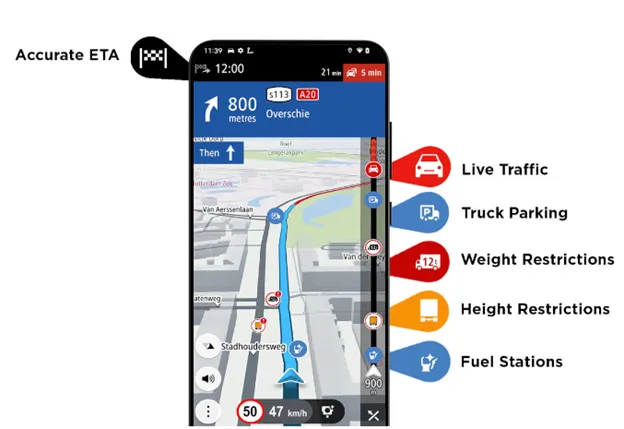
If you have subscribed to the truck option in the TomTom GO Expert app, you get the option to select your vehicle type. So, you can set your truck’s dimensions, maximum speed, cargo and more:
- From the Main menu, tap Settings .
- Tap Vehicle Profile .
- Make sure Truck is selected as a vehicle type.
- Set the following values:
- Vehicle type
- Engine type
- Dimensions
- Weights
- Maximum speed
- Dangerous cargo
- Commercial vehicle
4
EV settings
Select an electric vehicle type to be shown EV chargers:
- From the Main Menu, go to Settings.
- Tap Vehicle Profile.
- Tap Engine type or Engine.
- Select Electric or Hybrid > Electric.
EV chargers are now shown along your planned route.
To see EV chargers in the map view tap Charging Station or Charging park from the Main Menu.
The iOS app cannot show availability.
5
TomTom account
From the Main Menu, tap TomTom Services and make sure you’re logged in to your TomTom account.
You can select the following services:
- Traffic and Speed Cameras
- Plan.TomTom.com
- Online search
- Online Routing
6
Installing in your car
Only use a suitable mount to hold your device when you are using it in your car.
Be careful where you install your device in your car. The device shouldn't block or interfere with any of the following:
- Your view of the road.
- The controls in your car.
- Your rear-view mirrors.
- The airbags.
You should be able to reach the device easily without leaning or stretching.
7
Android Auto™ and Apple CarPlay®
Google and Apple use templates to ensure a similar look and feel, and screen elements that are familiar to the user. The GO Expert app has been adapted to use these templates.
Note the following restrictions:
- The number of menu items is limited so we need to pick the most used menu items.
- Changing settings or using deeper level menu items is not allowed.
- Map interaction is limited while driving.
Important: The GPS of the phone is used to track your vehicle as you drive. If you experience issues with your location as you drive, try placing your phone somewhere that allows it a good view of the sky.
8
Planning a route
To plan a route you need to start with your destination.
- Tap the search field to enter an address or name. Or tap a location on the map to set your destination.
- Tap Drive to calculate a route.
- Tap Drive (Android) or Let’s go (iOS) to start navigation.
This plans a route from your current location.
9
Adding stops
Once your route is planned, you can add a stop in two ways:
- Tap the Menu button in the bottom left of the screen, then Current Route.
This lets you do a search or add a POI. - Tap a location on the map to add a stop.
10
Saving your route
Once you have planned a route on your device you can save it:
- Briefly tap the route, then tap the menu button.
Note: If you tap and hold you get a different menu. - Tap Manage Route.
- Tap Add to My Routes.
- Type a name for your route and then tap Add.
Your route is now saved to Plan.TomTom.com.