Before you start, make sure your navigation device supports route recording. This feature is only available on selected newer devices.
GO 40, GO 50, GO 51, GO 60, GO 61, GO 400, GO 500, GO 600, GO 510, GO 610, Rider 410, Rider 400, Rider 40, GO 5000, GO 6000, GO 5100, GO 6100, Trucker 5000, Trucker 6000, START 40, START 50, START 60, Start 42, Start 52, Start 62, VIA 52, VIA 62, GO 520 Wi-Fi, GO 620 Wi-Fi, Rider 500, Rider 550, GO 5200 Wi-Fi, GO 6200 Wi-Fi, GO PROFESSIONAL, VIA 53, GO Basic, GO Classic, GO Essential, GO Premium, GO Comfort, GO Supreme.
Record a route
To record a route, you need to plan the route on your device. Find more about planning a route.
- After planning the route, tap the Menu button and then tap Record Route.

- A red dot appears in the lower right corner of the screen. Initially, it blinks 3 times to show the recording is started.
- To stop the recording, tap the Menu button again and tap Stop Recording.

You can name the recorded route or leave the suggested name. - The recorded route appears in My Routes.
Note: Renaming the recorded route is not available.
Planning a recorded route
- From the main menu, go to My Routes.
- Select your recorded route from the list.
- The route appears in the map view.
- Tap Drive.
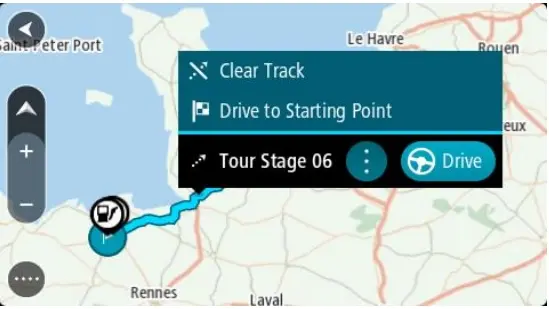
- If you wish to be navigated to the starting point, select the route and then select the pop-up menu.
- Tap on Drive to starting point.
Deleting a route
- Select My Routes from the menu.
- Then tap Edit List.
- Select the route you want to delete.
- Tap Delete.