If your TomTom device is not connecting to your computer, or if MyDrive Connect shows your device as "Not connected", there may be a problem with the USB connection, device drivers, or computer settings.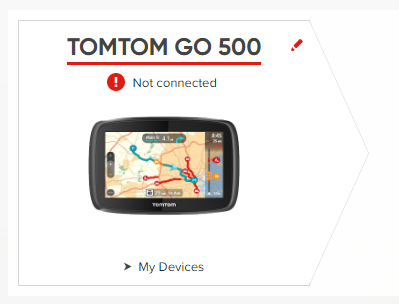
This article explains how to fix common connection issues when:
- Your TomTom device is not connecting to your computer
- Your device is not recognised by MyDrive Connect
- MyDrive Connect cannot detect your device
- Your TomTom device connects for charging but does not appear on your computer
Note: Devices with Wi-Fi® can receive updates directly over Wi-Fi® and do not need to be connected to a computer. For instructions, see: Updating your device using Wi-Fi®.
Before you start
- Make sure your computer is compatible with MyDrive Connect. See: Compatibility with MyDrive Connect.
- Firewall or antivirus software can sometimes prevent device drivers from installing correctly. Make sure your TomTom device is allowed to connect.
- Avoid restricted networks such as office or public networks that can block the installation of device drivers or large downloads.
- Avoid connecting the device through USB hubs, USB adapters, keyboard USB ports and monitor USB ports. Connect the device directly to a USB port on your computer.
Reinstalling device drivers
To fix the connection issue, you must update the device drivers on your computer. Follow the steps below to restore the connection.
macOS
If your TomTom device is not connecting to your Mac:
- Open System Settings > Network.
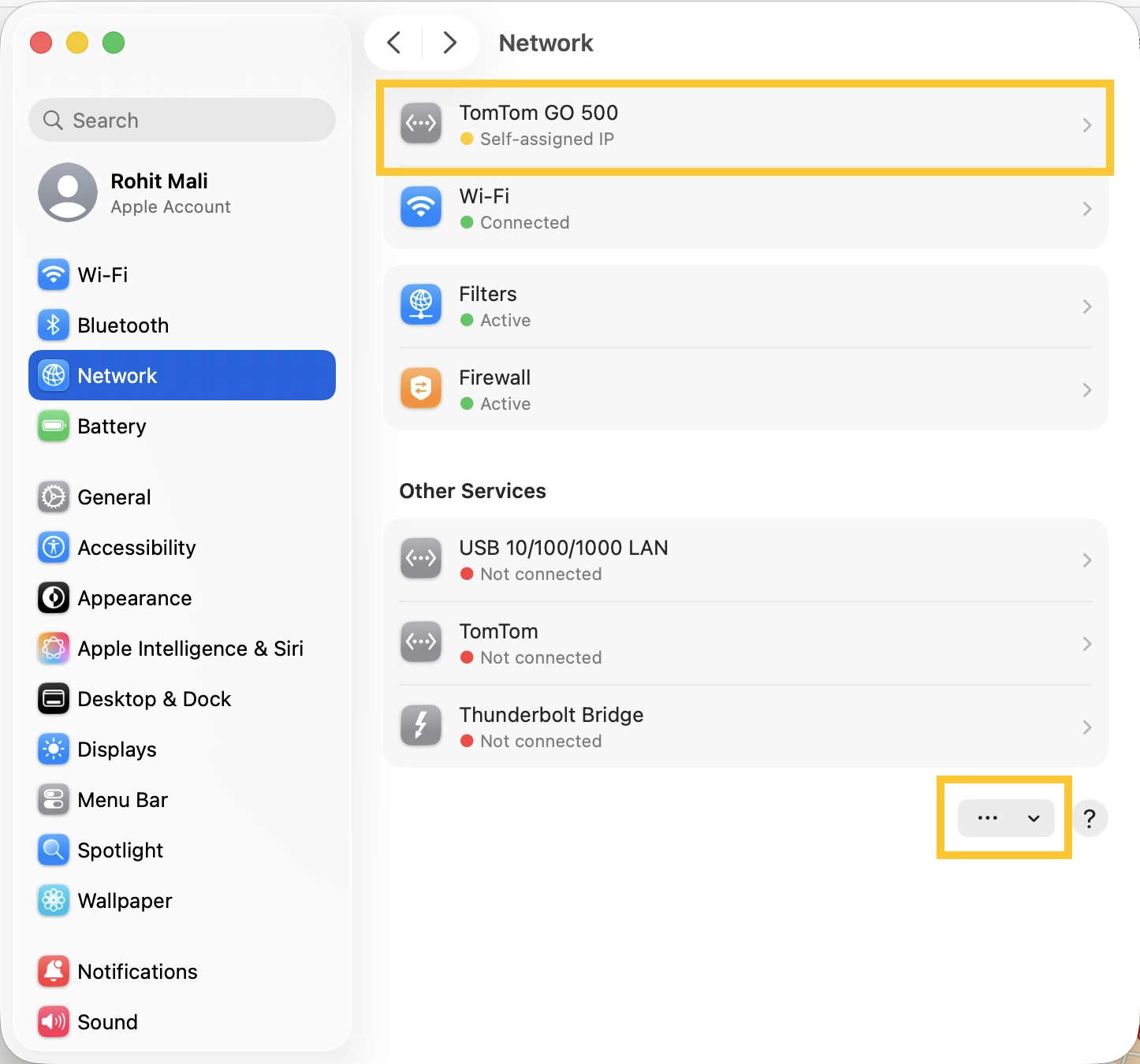
- Check whether your TomTom device appears in the list.
If the device does not appear
- Click the three buttons at the bottom.
- Click Add Service.
- Tap the field next to Interface.
- Select the TomTom device.
- Click Apply.
If the device appears but shows a red status
- Click the arrow next to your device, then Details.
- Click TCP/IP.
- Click Renew DHCP Lease.
- Click Apply.
- Click OK.
The status should change to yellow or orange, indicating the connection is working correctly.
TomTom still not connecting to your computer?
If your device is still not recognised, check your USB cable. A USB cable can charge your device without transferring data.
To test the cable:
- Connect the device to a different computer.
- Try a different USB cable and USB port if available.
- Check whether MyDrive Connect recognises the device.
If the device is recognised with another cable, replace the original cable.
Watch the video
This video shows you what to do if your navigation device doesn’t connect to your computer and is not recognised by MyDrive Connect. If your device is still not recognised by your computer after going through the steps in this video, click this link for Windows or for macOS, to reinstall the device drivers on your computer.