You can check the software and map version installed on your TomTom navigation device. Follow the steps below to find the version information on your TomTom HOME device.
Steps for devices:
GO x50 LIVE, GO x50, GO x40, Blue&Me TomTom, Carminat TomTom LIVE, Mazda Navigation (NVA-SD8110)(LIVE)
- In the main menu, tap Status & Information.
- Tap Version information.
The version of the software is listed next to App, for example: 9.058
The version of the map is listed next to the name of the Map, for example: 'Europe' v870.xxx
Steps for devices:
GO x30, GO x20, GO x10, GO, XXL IQ Routes, XXL Classic, XL, ONE, Start, RIDER, ECLIPSE II, Toyota Aygo Connect Multimedia
- In the Driving View , tap the bottom right corner.
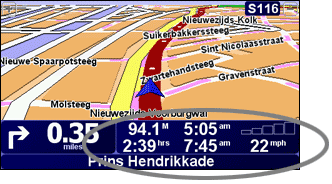
- The version of the software is shown on the right hand side of the route summary screen.
To view the version of your map, tap the field that shows the application version.
The version of your map is shown under Map. In this example the version of the map is 710.
On some navigation devices you can also tap Change preferences and then Show version. This icon is only available when "Show all menu options" is selected.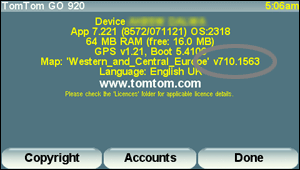
Steps for devices:
XL LIVE IQ Routes
- In the main menu, tap Change preferences.
- Tap Version information.
The version of the software is listed next to App, for example: 9.058
The version of the map is listed next to the name of the Map, for example:' Europe' v870.xxx
Steps for devices:
TomTom Start², TomTom XL IQ Routes²
- In the Driving View , tap the bottom right corner to display the Status summary screen.

- The version of the software is shown on the right hand side.
To view the version of your map, tap the field that shows the application version.
- The version of your map is shown under Map . In this example the version of the map is 845.

Steps for devices:
RIDER (2013) Urban Rider, Rider Pro
- In the main menu, tap Options.
- Tap Status & Information.
- Tap Version information.
The version of the software is listed next to App, for example: 9.058
The version of the map is listed next to the name of the Map, for example:' Europe' v870.xxx
Steps for devices:
Carminat TomTom, Lexus CT MoveOn Navi
- Press and hold Info/Route on the central control or press the right soft button on the remote control.
The version of the software is shown on the right hand side of the route summary screen. - To view the version of your map, switch to the information screen from the route summary screen:
Shift the central control's rotary button to the right or press the right soft button on the remote control.
The version of your map is shown under "Map".
Steps for devices:
Mazda NB1 LIVE, Uconnect
- Tap the screen to show the Main menu.
- Tap Settings.
- Tap Status & Information.
- Tap Version information.
The version of the software is listed next to App, for example: 9.058
The version of the map is listed next to the name of the Map, for example: 'Europe' v870.xxx