Step-by-step instruction for downloading your data can be found below. You can also request a download of all your other TomTom data by filling in the https://help.tomtom.com/hc/requests/new?ticket_form_id=360000697820.
Download your System Usage Data
Note: The steps are applicable to the following devices:
GO Navigator, GO Discover, GO Expert / GO Expert Plus, GO Superior, GO Advanced, GO Exclusive, GO Camper, GO Expert Plus PP, GO Navigator 2nd Generation, GO Camper Max 2nd Generation, GO Professional 2nd Generation, GO Classic 2nd Generation, GO Classic Lite, GO Camper Tour 2nd Generation, GO Camper Max
- Install MyDrive Connect and log in.
- Connect your device to the computer and click on the My account tab.
- Under My System Usage Data, click Download System Usage Data.
- Click Show in folder on the pop-up screen. The System usage data gets downloaded in the cache folder of your computer.
You can find the data here:
Windows: \Users\username\AppData\Local\TomTom\HOME3\Cache\Archive.tar.gz
Mac: \Users\username\Finder\GO\Library\Application Support\TomTom\HOME3\Cache\Archive.tar.gz - Right-click the file Archive.tar.gz and Extract All.
You can delete the data from TomTom’s storage in MyDrive Connect. In the My account tab, click Delete System Usage Data and then Confirm.
Download your MapShare reports
Note : If the report is submitted through the navigation device it cannot be downloaded.
To download your MapShare reports submitted through the Online MapShare reporter follow the steps below:
- Go to www.tomtom.com/mapshare/tools and click on My previous reports .
-
Enter the report id in the box provided under My Reports and click on the download icon.
You can also enter multiple report IDs separated by commas to download multiple reports at once. If you wish to download all the reports, click on the download icon without filling in a report ID.
- After the request is submitted, you will get an email on the registered email address with a link to download this data.

Download your Support requests
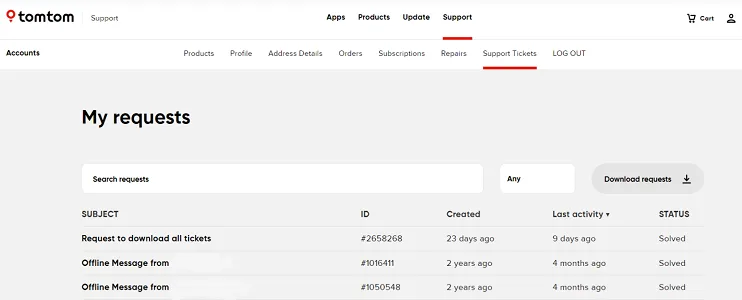
To access all of your support requests from when you've contacted TomTom Customer Care, follow these steps:
- Make sure you are logged in with your TomTom account on our support site .
- Click the profile icon in the top-right corner and select Support tickets.
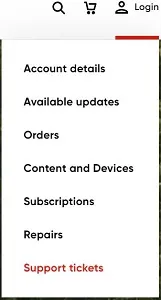
- Here you can see a list of all of your support requests. When you click on one you will see all the messages and information related to that request.
Download your places and routes
You can download your places and routes from Plan.TomTom.com . To do so, follow these steps:
- Go to Plan.TomTom.com.
- In the top right, click Sign in.
- In the top left, click the menu icon.

- At the bottom of the side bar, click Download Your Data.
Your downloaded data is saved in your browser's default download folder.