To use your TomTom navigation device with services like TomTom Traffic or TomTom Speed Cameras, you need to ensure the following:
- Your navigation device is connected to the internet.
- You’re signed in to a TomTom account with a valid subscription.
Internet connection
Most of our navigation devices use your smartphone’s internet connection. Follow these steps to connect to your phone:
Android
For Samsung phones scroll down to One UI.
- In your phone's Settings > Bluetooth , switch on Bluetooth.
- In Settings > Portable Hotspot , switch on Bluetooth tethering .
- Open Settings > Bluetooth .
- On your navigation device, go to Main Menu > Settings > Bluetooth .
- Tap Add Phone .
- Tap Next . *
Your device starts searching for phones.
* If you’re shown a QR code, switch to your phone and select your navigation device. - Select your phone.
- Tap Pair on your phone and on your navigation device.
Samsung One UI
- In your phone's Settings > Connections > Bluetooth, switch on Bluetooth.
- In Settings > Connections > Mobile Hotspot and Tethering, switch on Bluetooth tethering.
- Open Settings > Connections > Bluetooth.
- On your navigation device, go to Main Menu > Settings > Bluetooth .
- Tap Add Phone .
- Tap Next . *
Your device starts searching for phones.
* If you’re shown a QR code, switch to your phone and select your navigation device. - Select your phone.
- Tap Pair on your phone and on your navigation device.
iOS
- In iPhone Settings > Bluetooth , switch on Bluetooth.
- In Settings > Personal Hotspot , switch on Allow others to Join .
- Open Settings > Bluetooth.
- On your navigation device, go to Main Menu > Settings > Bluetooth .
- Tap Add Phone .
- Tap Next . *
Your device starts searching for phones.
* If you’re shown a QR code, switch to your phone and select your navigation device. - Select your phone.
- Tap Pair on your phone and on your navigation device.
Wi-Fi
Alternatively, follow these steps to connect using Wi-Fi™:
Android
For Samsung phones scroll down to One UI.
- In your phone's Settings > Portable hotspot, enable Personal hotspot.
- Tap Set up portable hotspot to see the Wi-Fi password. You may need to tap the eye to see the password.
- On your navigation device, go to Settings > Wi-Fi.
- Tap your phone.
- Enter the password shown on your phone.
- Tap Connect.
Samsung One UI
- In your phone's Settings > Connections, enable Wi-Fi.
- In Settings > Connections > Mobile Hotspot and Tethering, select Mobile Hotspot.
- On your navigation device, go to Settings > Wi-Fi.
- Tap your phone.
- Tap Connect.
iOS
- In iPhone Settings > Personal Hotspot, select Allow Others to Join.
- Note the Wi-Fi password below Allow Others to Join.
- On your navigation device, go to Settings > Wi-Fi.
- Tap your phone.
- Enter the password shown on your phone.
- Tap Connect.
Your navigation device is now set up to use your phone as a Wi-Fi hotspot.
TomTom account
To make sure you’re logged into your TomTom account, follow these steps:
- At the top right of the Main Menu you see a status overview.
- Tapping there brings up more information.
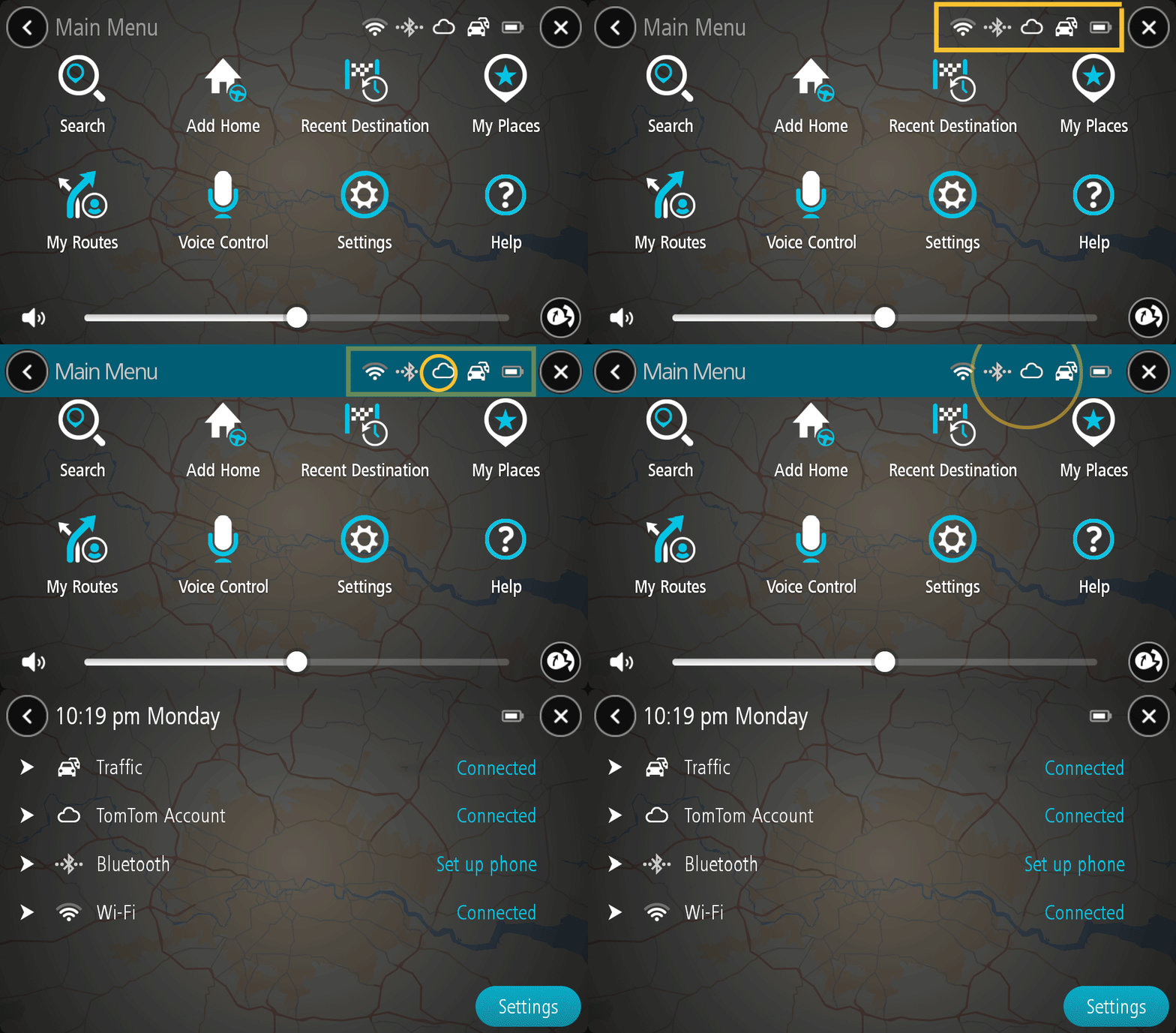
- Make sure TomTom account shows Connected .
- If this is not the case, tap Not logged in to sign into your TomTom account.