You can report a camera on your navigation device with one tap. First check that the service is on.
Steps
-
Check your speed camera subscription
- Make sure your speed camera subscription is active.
- If you don't have a subscription, you can get one at TomTom.com/services.
-
Set up Bluetooth
- Set up a Bluetooth connection between your navigation device and your smartphone so live services (including speed cameras) can work.
- Learn how to set up a Bluetooth connection: Connecting your TomTom device to the internet.
-
Turn on speed camera alerts on your device Steps vary by device. Follow the path that matches your device.
- Device type A:
Go to Settings > Sound > Alerts & Sounds and make sure Cameras is selected. - Device type B
Go to Settings > Sounds & Warnings and make sure Speed cameras & hazards is selected. - Device type C
From the Main Menu, go to LIVE services > Speed cameras / Safety alerts and tap Enable report.
- Device type A:
-
Report a speed camera while navigating
- To report a speed camera on your route, tap the speed camera icon next to your current speed. You'll find it at the bottom of the guidance view.
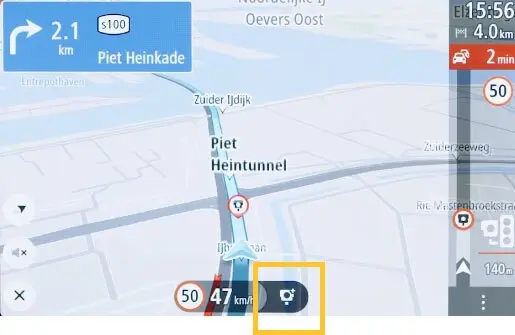
- Safety first: Only report when it's safe to do so. If possible, ask a passenger to help.
- To report a speed camera on your route, tap the speed camera icon next to your current speed. You'll find it at the bottom of the guidance view.