On your navigation device, you can add your home location by following these steps:
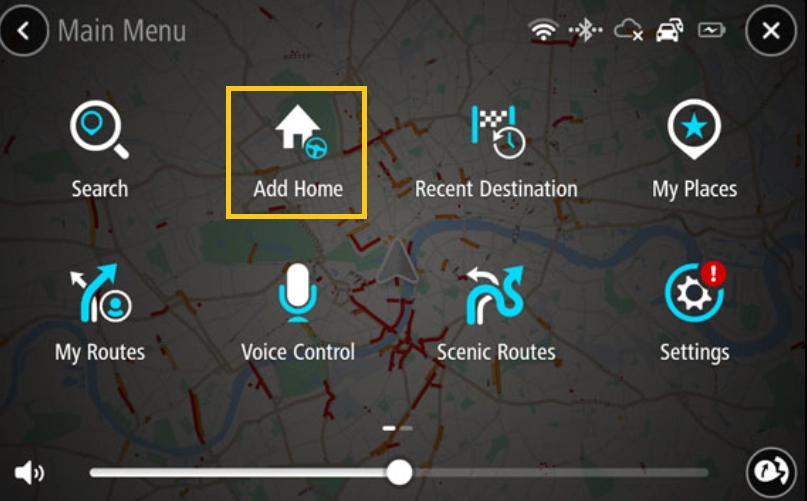
- From the main menu, tap Add Home.
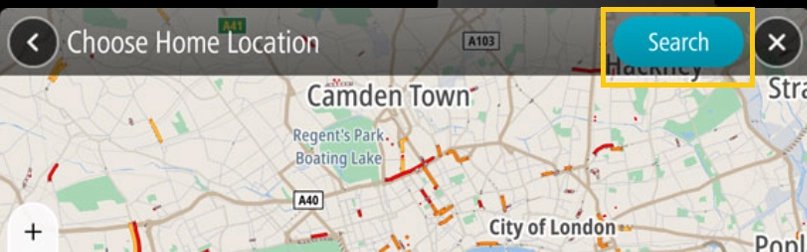
- Tap Search and enter your home address.
- Choose your address from the list and then tap Set to save it.
Your Home location is added now.
Once the address is saved, the option changes to Drive Home in the main menu.
Alternatively, you can also add your home location in My Places. Go to My Places from the main menu and tap Add Home.
Setting your home location using map
- In the map view, move the map to your location and zoom it until you find your home location.
- Tap and hold to select the location.
- A pop-up menu shows the address or the nearest address. Open the pop-up menu and the select Add to My Places.
- Enter the name “Home” in the text bar.
Note: “Home” must have a capital letter H to save it as your home address. - Save the location.
Your home location is shown on the map.
Changing your home location
To change the address of your existing home location, you need to edit the address from My Places. Follow these steps to change the home address:
- From the main menu, go to My Places.
- Tap Home.
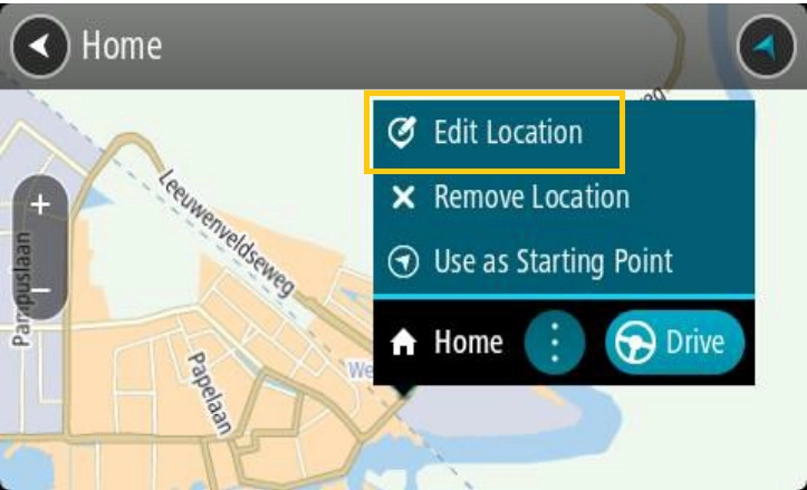
Your home location is shown on the map with a pop-up menu. - Choose Edit Location.
- Tap Search and enter the address.
- Choose the address from the list and then tap Set home location.