This article applies to:
Tom by TomTom
| Road alerts | |
|---|---|
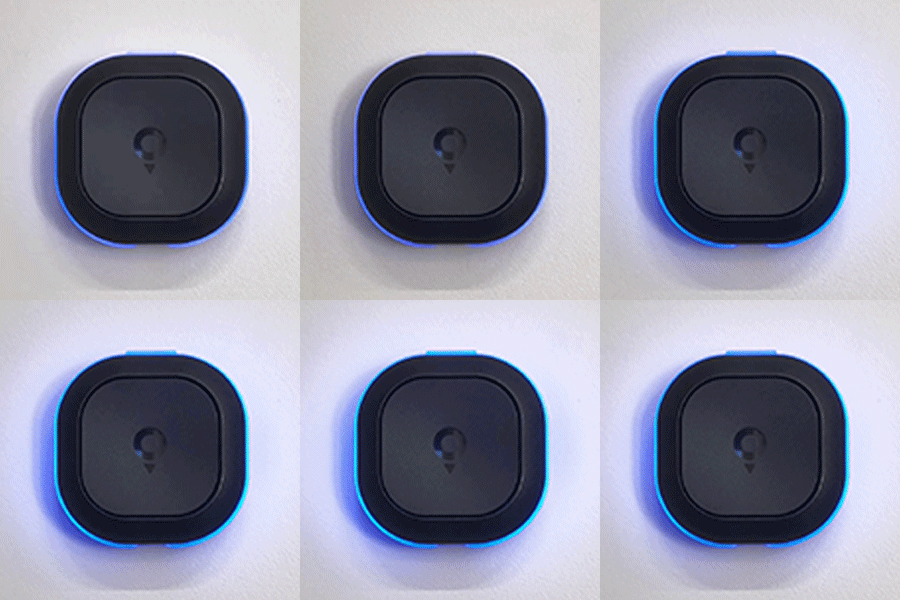
Speed cameras
|  |
| Speeding while approaching a speed camera If you're over the speed and approaching a speed camera, Tom lights up orange and blue so you can slow down in time. | 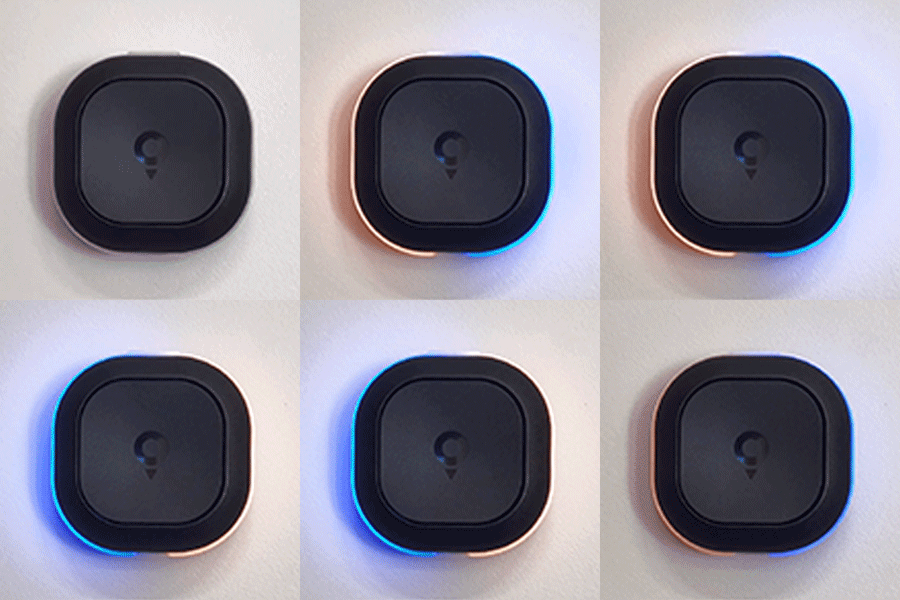 |
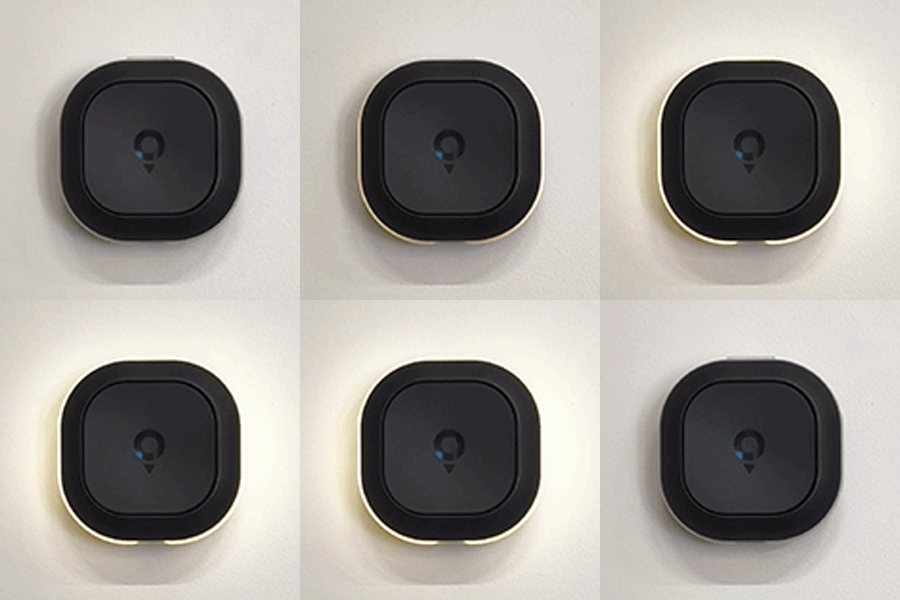
Obstacles
|  |
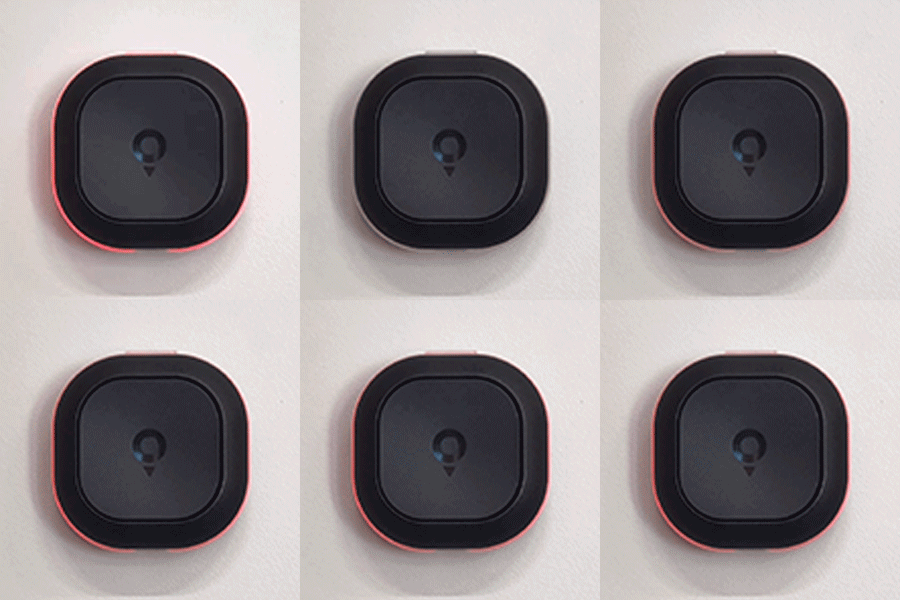
Traffic
|  |
| Speeding Orange lights alert you when the maximum allowed speed is exceeded. | 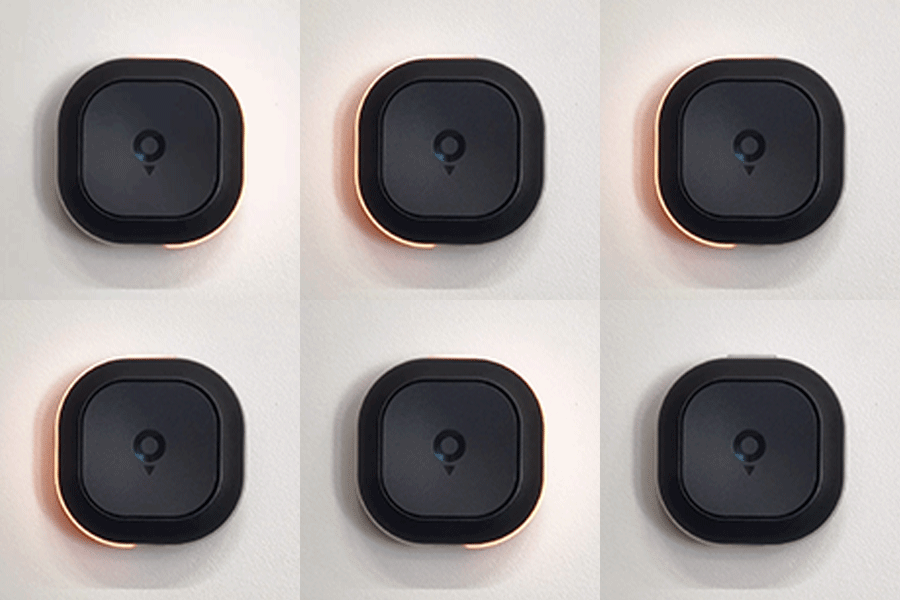 |
| Reporting events | |
|---|---|
| Report a speed camera To report a speed camera, tap the large center button. You'll see Tom light up blue to confirm. | 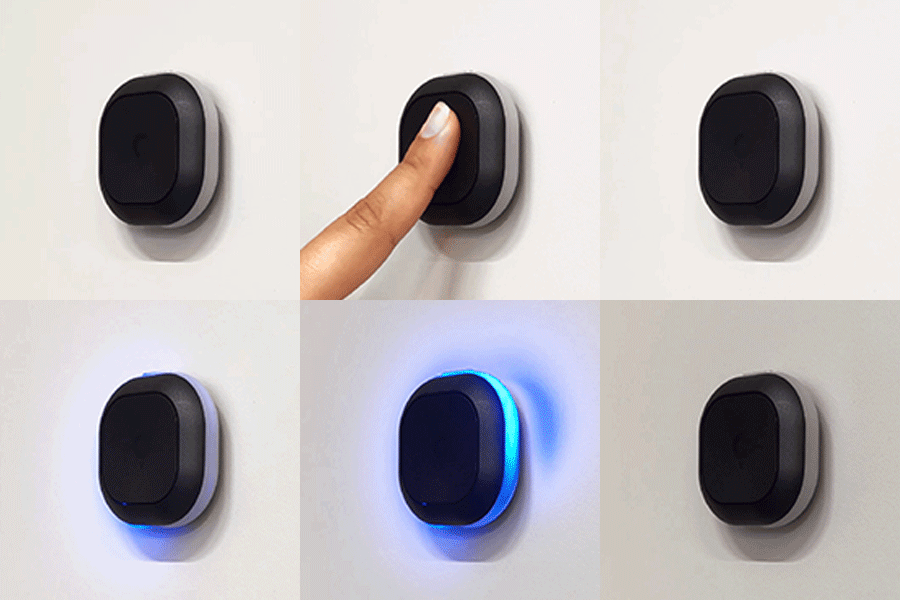 |
| Confirm a speed camera If you get a speed camera alert and the camera's still there, tap the large center button. Tom will light up blue. | 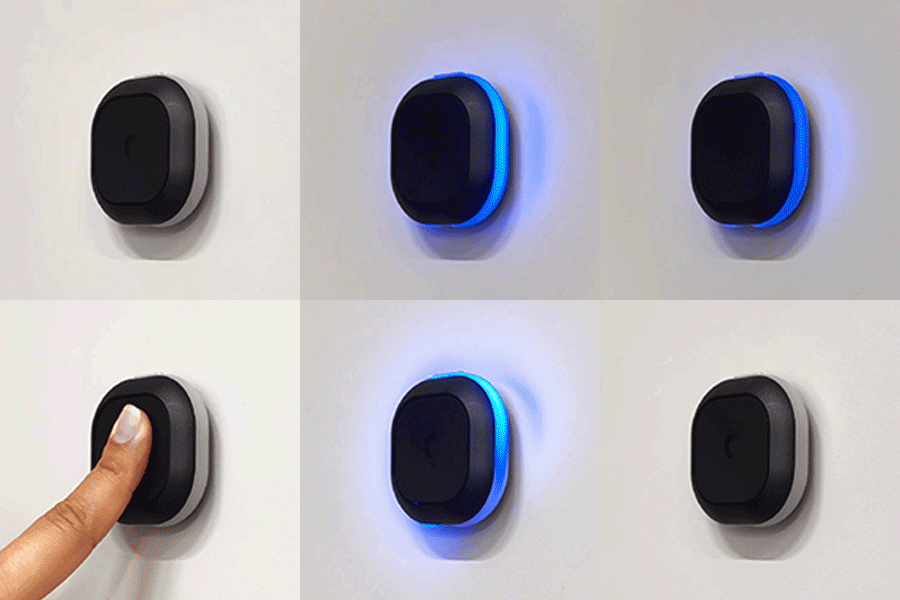 |
| Report obstacles To report obstacles, hold the large center button a little longer until it lights up yellow. | 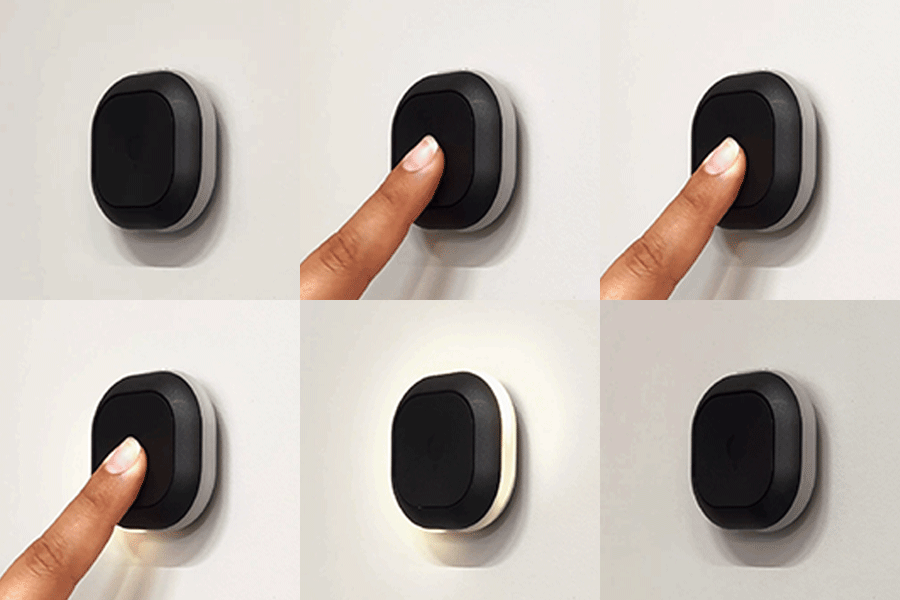 |
| Remove an alert If you get a false alert for a camera that's already gone tap the small top button. Tom lights up blue. | 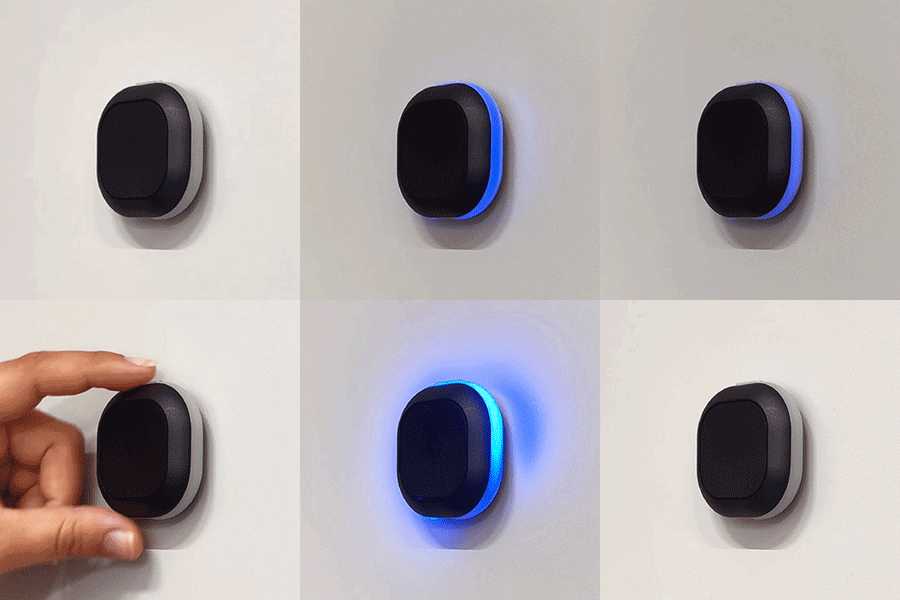 |
| Pairing | |
|---|---|
| Power on The first time you use Tom, hold the small top button for three seconds to power on Tom. A white light appears confirming Tom is powered on. | 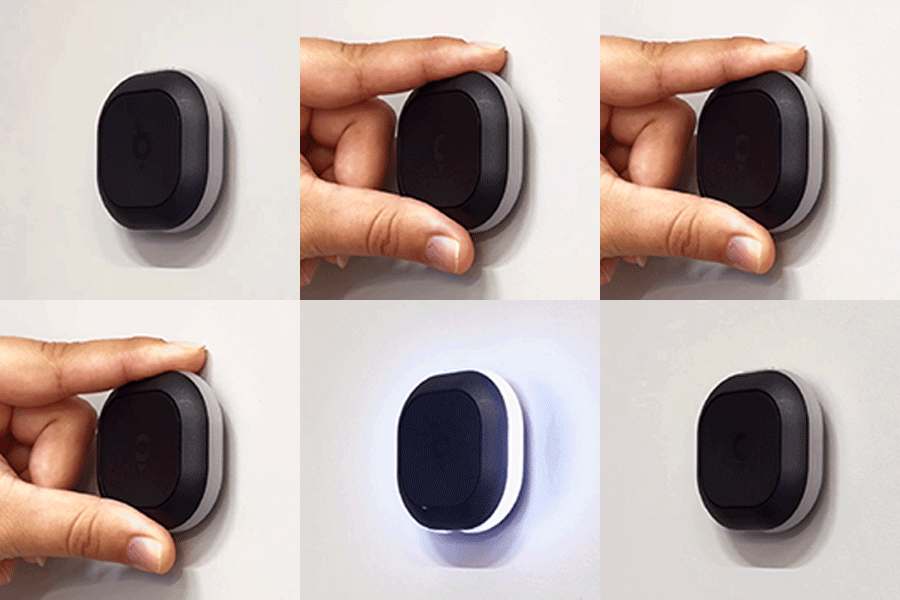 |
| Pairing mode and auto-start When Tom tries to pair with a smartphone, it lights up white. When Tom pairs successfully, the light turns green. | 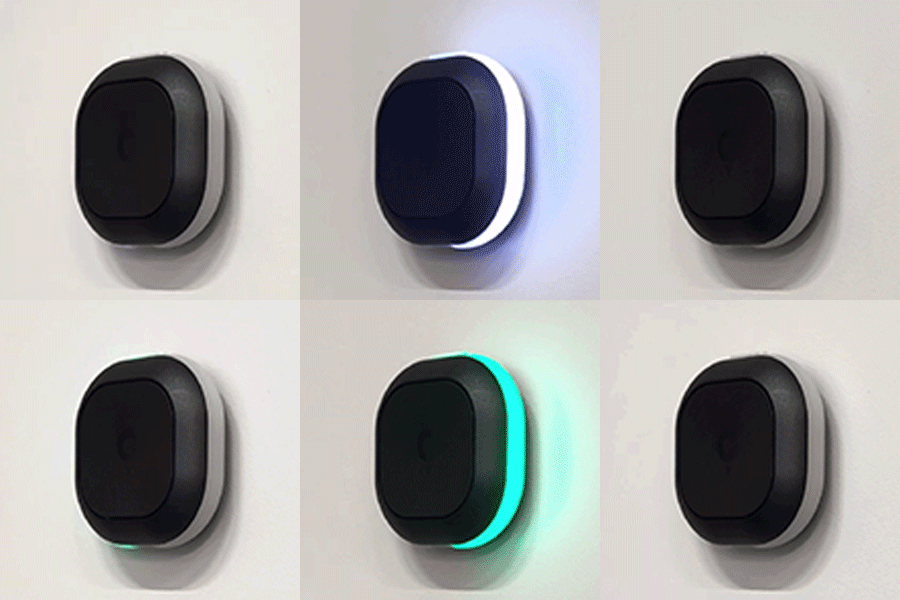 |
| Pairing unsuccessful A pulsating white LED indicates Tom is unable to pair to a smartphone. | 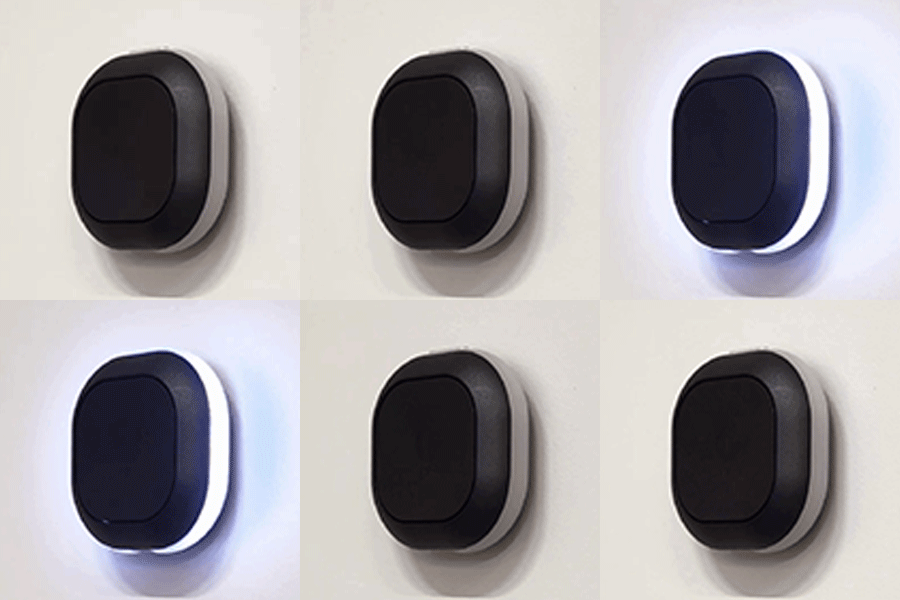 |
| Heartbeat A pulsing green LED indicates a successful connection between Tom and the smartphone. This heartbeat repeats every 10 seconds. | 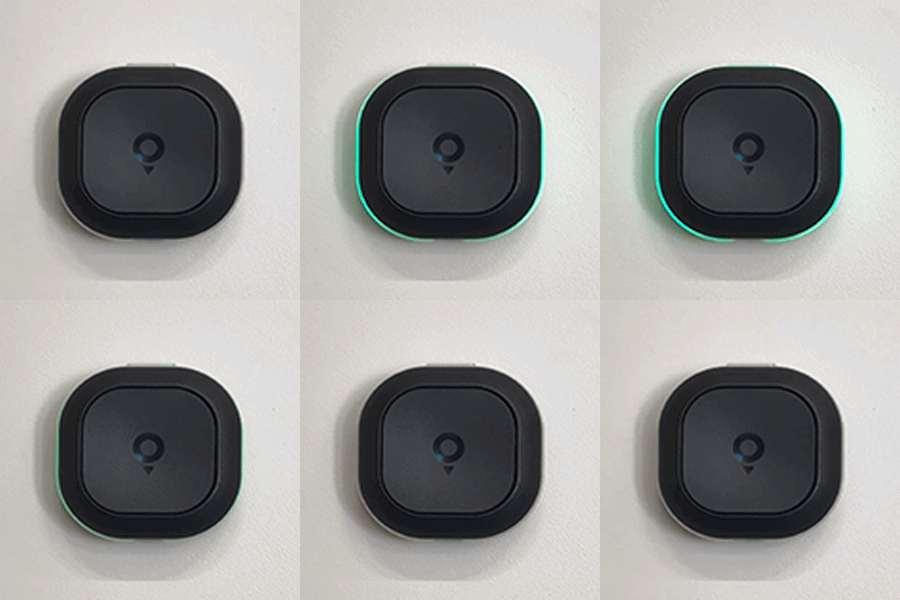 |
| Battery | |
|---|---|
| Low battery Red lights at the bottom of Tom appear when the battery is low. Charge Tom. | 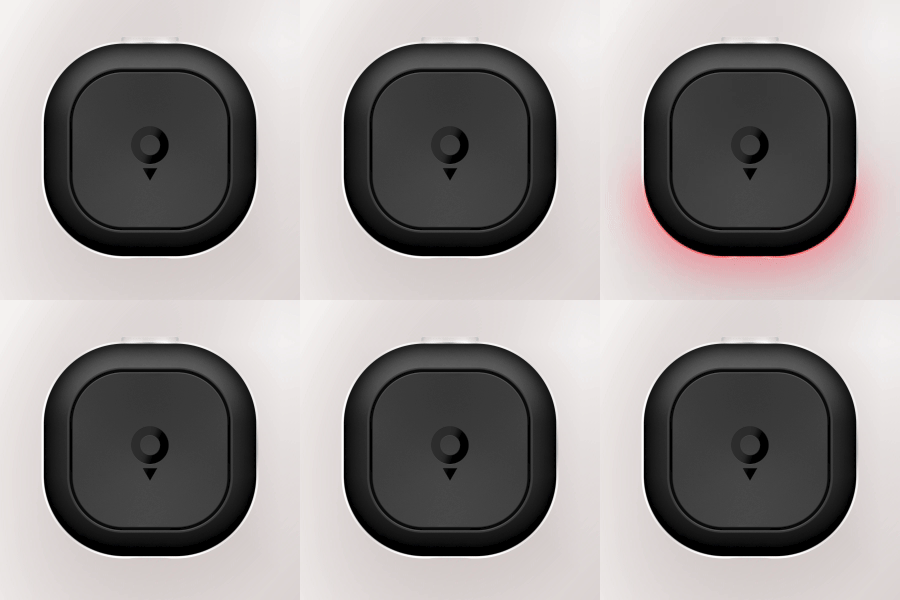 |
| Charging when inactive When Tom is charging, blinking lights appear, starting with red lights at the left bottom, changing to orange and when the battery is almost full, the lights change to green. | 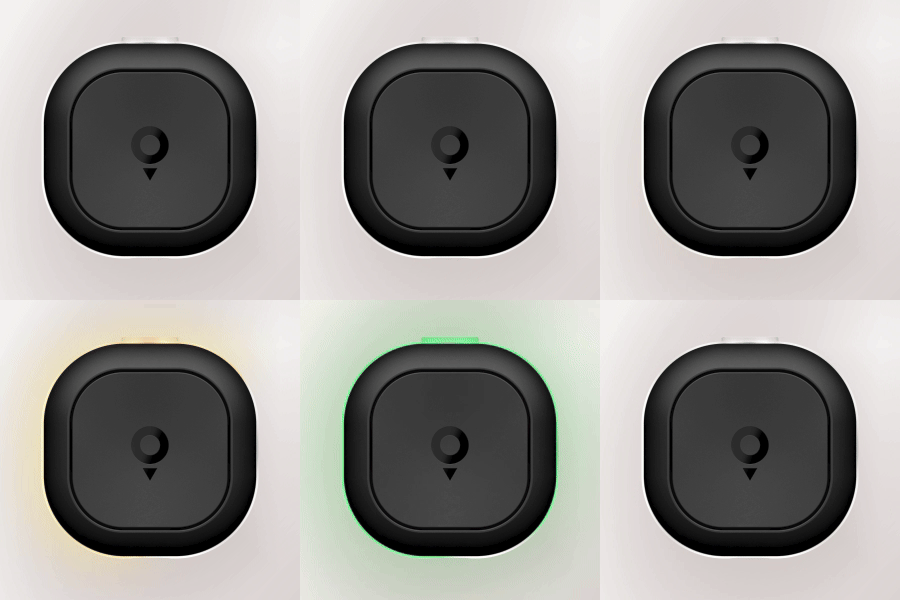 |